What should you do when an idea doesn’t pan out the way you’d hoped? That’s a question I had to answer recently when it comes to one of my asset packs, Blur Shaders Pro for Unity URP, HDRP, and Built-in. I want to talk a bit about what this asset was, who it was meant for, and why I decided to make it free this week. And I’ll talk a lot about the sort of tech that goes into a blur shader asset like this!
Why blur shaders?
Blur Shaders Pro is a subset of a larger pack, Snapshot Shaders Pro, and the intent was to make just the blur shaders available for those who aren’t really interested in the full pack, but would appreciate the opportunity to get the blur shaders alone for a lower price. They might be tempted to upgrade to the full pack later, but either way, I thought that offering a subset of the full pack was a win-win.
I like this model. Asset Store developers often structure their assets like this because it’s quite hard to make a self-contained asset worth selling for a low price, but it’s comparatively easy to justify making a bundle of (in this case) post processing shaders in a larger pack for a higher cost, which in turn means it’s just a little more effort to spin off that small asset, and it suddenly becomes worth it.
Over the lifetime of the pack, it made somewhere in the region of the low hundreds of dollars, which is very modest by Asset Store standards, but certainly nothing to sneeze at! I’m happy that it made any sales at all. Admittedly, I released Blur Shaders Pro on a bit of a whim in May 2024 without doing much real research into which of the effects in Snapshot Shaders Pro would perform the best. I wonder if it could have reached more people with a different approach.
I don’t really know if it succeeded at enticing people to get the larger pack. The Asset Store lets you offer upgrade discounts for ‘lite versions’, so I made the upgrade discount exactly the same price as Blur Shaders Pro itself. This, I feel, gave people a completely safe path to buy into the larger pack where they wouldn’t lose a cent, but I never really noticed anyone taking advantage of it. Then again, I also didn’t advertise that on the store page or make any real effort to make people aware of the link between the two packs.
Maybe I should be less lazy next time.
Why deprecate now?
Good question. I don’t know what the best time is to remove old asset packs or upgrade them to new versions. The consensus seems to be ‘each major version’, e.g. 2021.X is one asset pack, 2022.X is another one, 6.X is a third one, but I missed the boat on that and Unity’s update cadence has changed over time so it’s hard to predict when a ‘major’ version will come out.
In coming versions, Unity is planning to discontinue the built-in render pipeline and slow down on HDRP development, which leaves some of my old asset packs in a weird place. Supporting all pipelines in one store package across several major Unity versions is a nightmare involving sub-packages, compiler pre-processor statements, and lots of errors when you import an asset in the wrong pipeline - problems which are only going to get worse when BiRP finally dies. Now seems like as good a time as any to drop support for it.
I will say, BiRP hasn’t actually changed in a thousand years now, so the BiRP version of Blur Shaders Pro will likely still function until it’s removed.
I have already started the process of moving away from BiRP and HDRP for other asset packs. Each of my packs released in the last couple of years or so have targeted only URP, as I see that as the primary pipeline going forward. Even Snapshot Shaders 2, my sequel to the original Snapshot Shaders Pro, is URP-only, which let me add all-new features and effects without dreading needing to write them three times and debug them three times and tear my hair out three times.
How to set your assets free
Firstly, I didn’t want to totally abandon this asset to the wind, so I fired up Unity and made sure that the URP version functions properly in Unity 6.3 at the very least. I kind of just assumed that the other versions are still good, but I was most worried about URP since that’s where the APIs keep changing.
Secondly, I hopped into the Asset Store backend and made the asset pack free rather than removing it. I still think it’s a useful asset pack, even if I’ve made it quite clear on the store page that I’m no longer interested in supporting it past Unity 6.3. Obviously, I can change my mind (it doesn’t take much to clean things up for Unity 6.4) but for now, that’s how it will stay.
Thirdly, I made the GitHub repositories for URP, HDRP, and BiRP public under the MIT license. It leaves the pack in a weird place license-wise since the Asset Store version uses the proprietary Asset Store license, but it is possible to produce the same codebase under several licenses. If you’re planning on distributing your own modifications, just fork the GitHub version and include the MIT license, since the Asset Store license expressly forbids distribution of derivative works.
I think that’s free enough!
How to blur
This, I’m sure, is the part most of you are interested in. I talked a little in a Reddit post about it, and enjoyed watching an AI nonce get bodied in the comments a bit, but I’ll go into more detail here about how the blur shader works, particularly the URP version.
The purpose of a blur shader is to destroy information about the edges of objects. In signal processing terms, it’s a low-pass filter - only parts of the image with low frequency (such as gradual color changes) survive the filter. We define a 2D grid with a pixel width, called a kernel, and place it over an input image so that one of its pixels is in the center of the kernel. That pixel’s color in the output image is some sort of average of the colors of the input pixels inside the grid. Then, we move the kernel across the input image until we have processed every pixel in this way. That’s a blur!
There are lots of ways to do this. The most basic kind of blur is called a box blur, where all the pixels inside the kernel are weighted equally: just add all the pixel colors, then divide by the number of pixels. It’s named as such because you tend to get square-ish artifacts in the resulting image.
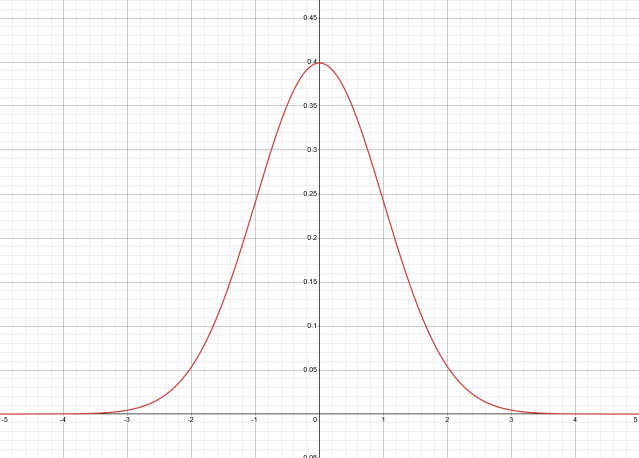
A smoother but more computationally intensive method is called Gaussian blur. We calculate a weight value for each kernel pixel using a Gaussian function - if you’ve done stats before then you might be familiar with this function from the Gaussian distribution (also called the normal distribution). As you get further from the center, weight values smoothly get smaller and smaller, but never quite touch the x-axis and become zero, even if it looks like it from the graph.
Here is the function in both 1D and 2D.
\[G(x) = \frac{1}{\sqrt{2\pi \sigma^2}} e^{-\frac{x^2}{2 \sigma^2}}\] \[G(x, y) = \frac{1}{2\pi \sigma^2} e^{-\frac{x^2 + y^2}{2 \sigma^2}}\]This looks complicated, but we can just write this function once in the HLSL code and be done with it.
float gaussian(int x)
{
    float sigmaSqu = _Spread * _Spread;
    return (1 / sqrt(TWO_PI * sigmaSqu)) * pow(E, -(x * x) / (2 * sigmaSqu));
}
You’ll notice I only include the 1D version in the HLSL code, which I’ll explain in a bit. The value of \(\sigma\), the standard deviation or spread of the function, is a value we feed into the shader based on the kernel size, and we calculate it so that the weight of pixels at the edge of the kernel is juuuuuust above 0. Smaller values of \(\sigma\) mean the weight values drop off much quicker away from the center pixel. I made it so that the spread is about \(\frac{2}{15}\) of the kernel width, which seems to work fine. In the diagram of the Gaussian function above, \(\sigma=1\).
material.SetInt("_KernelSize", settings.strength.value);
material.SetFloat("_Spread", settings.strength.value / 7.5f);
Inside the shader, we can just loop over each pixel and take a weighted average of them, based on a Gaussian weight value which decreases further from the center pixel. For the horizontal pass, it looks like this:
float4 frag_horizontal (Varyings i) : SV_Target
{
    float3 col = float3(0.0f, 0.0f, 0.0f);
    float kernelSum = 0.0f;

    int upper = ((_KernelSize - 1) / 2);
    int lower = -upper;

    float2 uv;

    for (int x = lower; x <= upper; x += _BlurStepSize)
    {
        float gauss = gaussian(x);
        kernelSum += gauss;
        uv = i.texcoord + float2(_BlitTexture_TexelSize.x * x, 0.0f);
        col += gauss * SAMPLE_TEXTURE2D(_BlitTexture, sampler_LinearClamp, uv).xyz;
    }

    col /= kernelSum;

    return float4(col, 1.0f);
}
A Gaussian blur results in a nicer image than box blur.
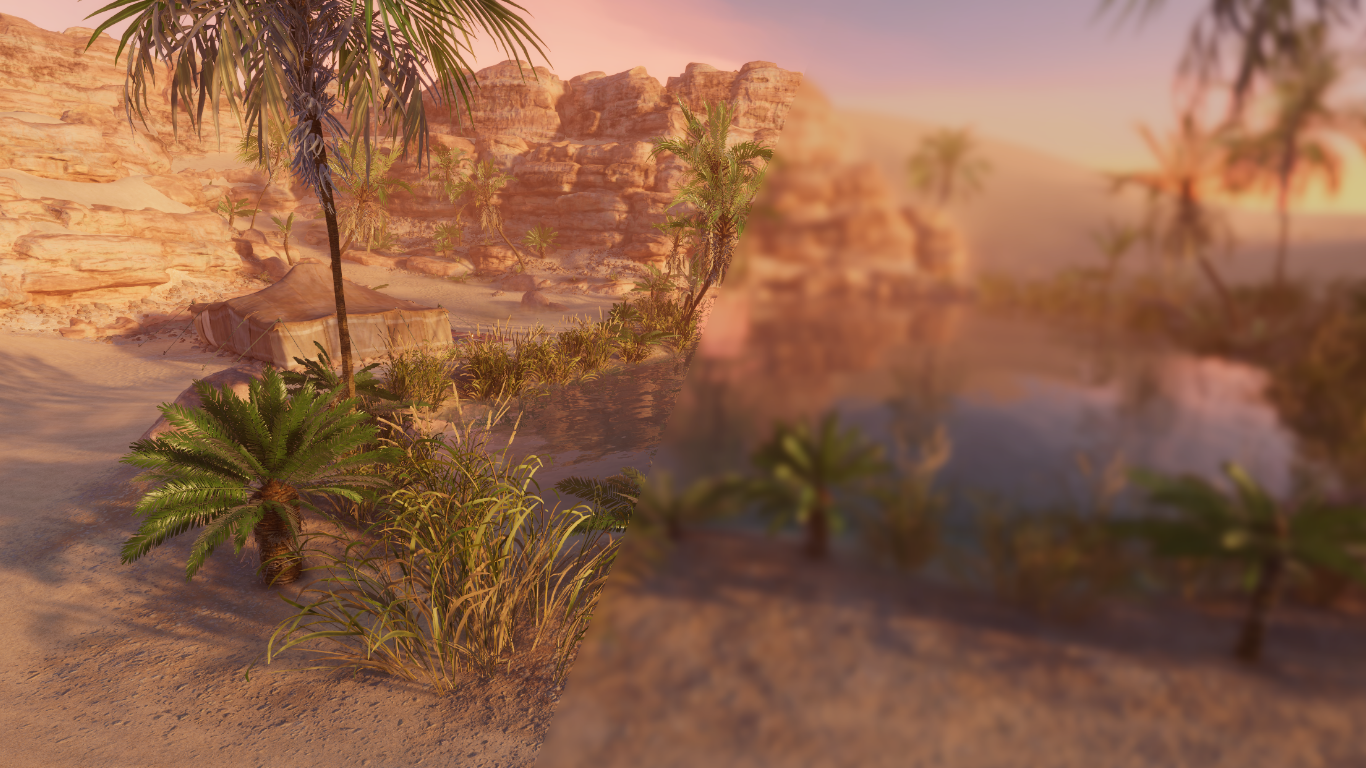
The nice thing about both these kinds of blur kernel is that they are linearly separable, meaning that the process of applying a horizontal blur kernel of size \(n \times 1\) to the input image, then applying a vertical blur kernel of size \(1 \times n\) to the intermediate image, produces an identical result to applying an \(n \times n\) kernel to the input image in one pass.
There is some overhead required to set up the two-pass version versus the one-pass version, but in practically every scenario, two-pass is much faster because we do \(2n\) texture samples versus \(n^2\). In big-O notation, the two-pass algorithm is \(O(n)\), whereas the one-pass algorithm is \(O(n^2)\). Put it this way: for a kernel size 3, the smallest blur, we’re already doing 6 samples versus 9. And for a kernel size 10, it’s 20 samples versus 100. They’re not even close. Hence, only the 1D Gaussian function in the code - I don’t even give the user the option to choose between one- and two-pass, since two-pass is so overwhelmingly better.
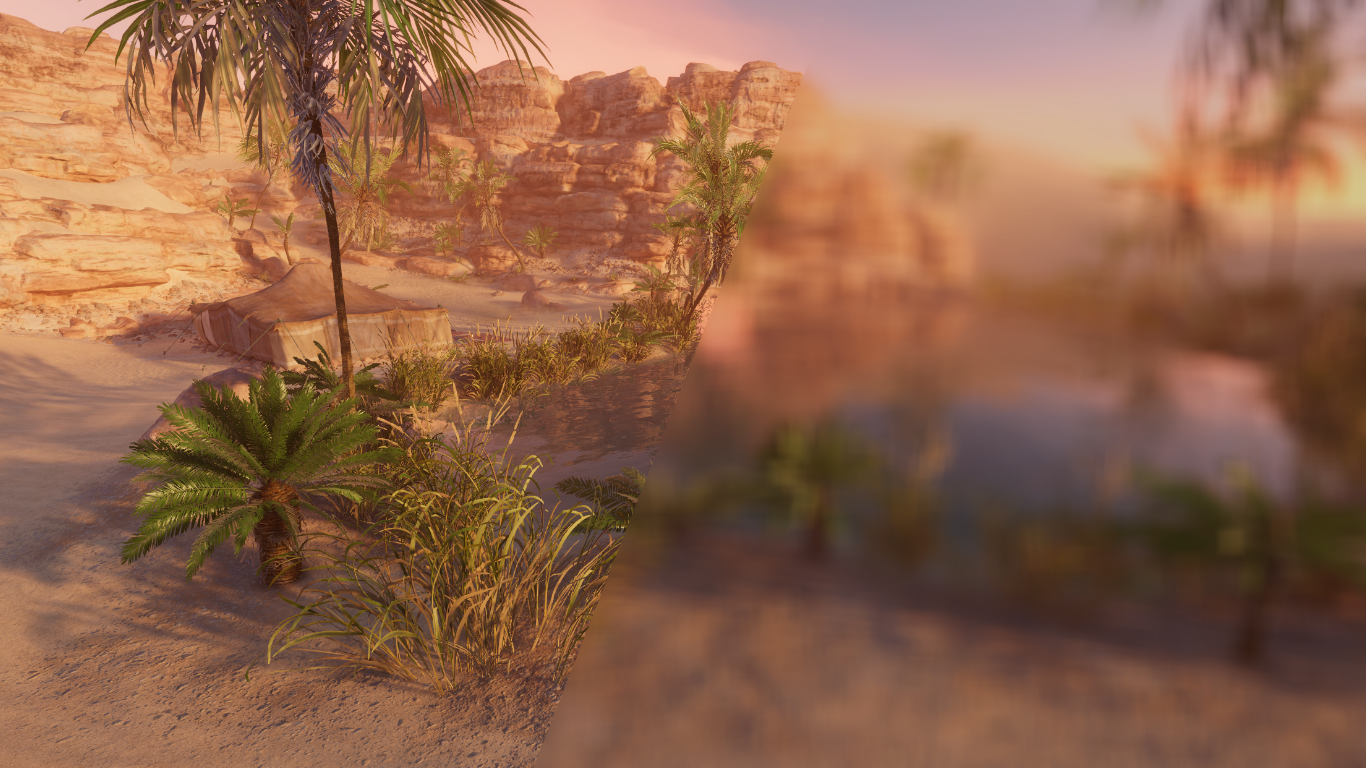
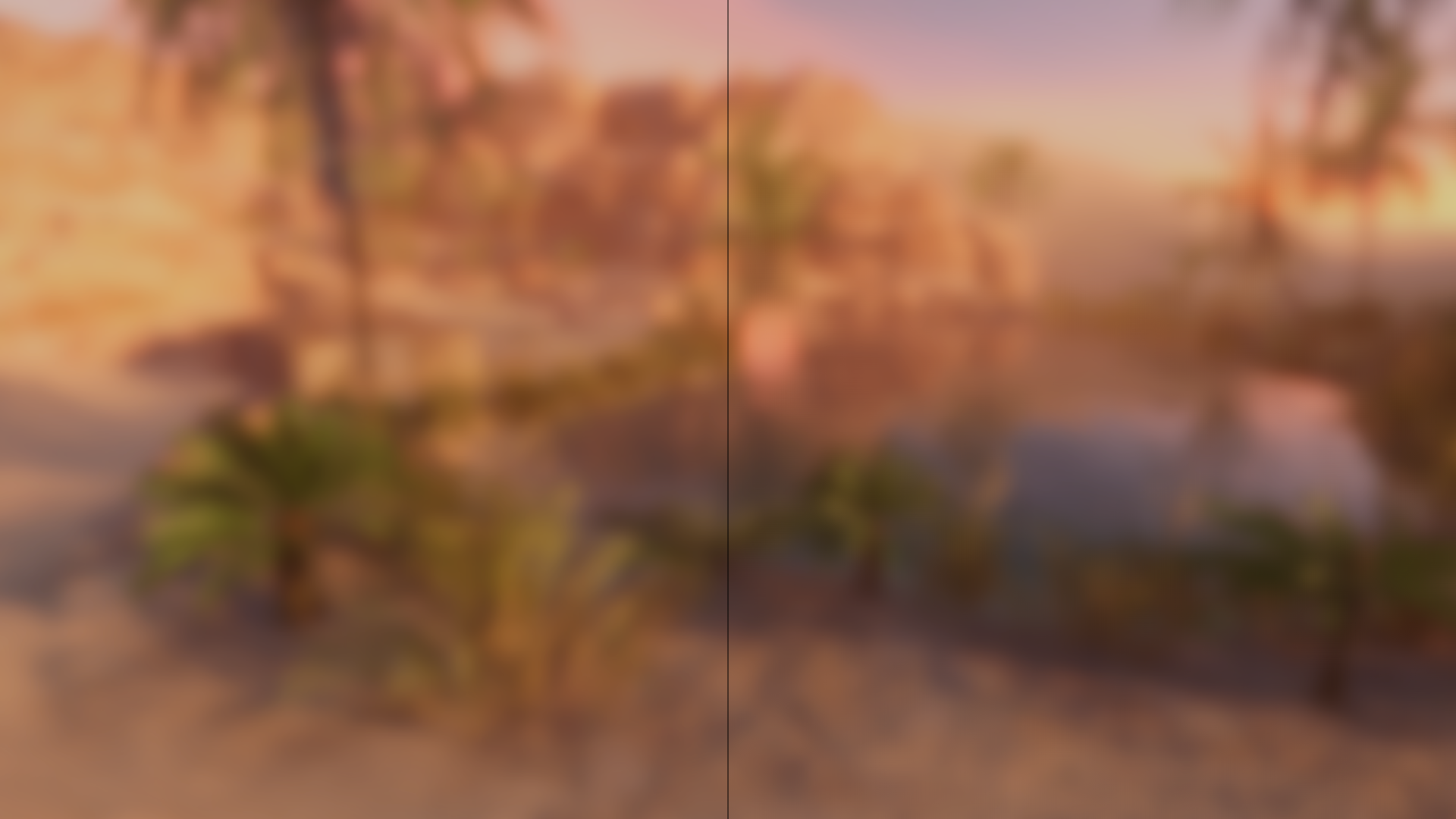
The other optimization we can use is a sparse kernel. Let’s say our kernel is \(100 \times 100\), which is obviously quite large. We want this kernel to access pixels far away from the center pixel, but we don’t necessarily need every data point between those extremes - there’s a sweet spot where we can skip some of the information without it being noticeable. With that in mind, I introduced a step size parameter for my blur shader which can skip over some of the pixels in the kernel. If the step size is 2, every other pixel is skipped, saving you about half of the texture samples while being barely noticeable on such a large kernel.
In the following image, a kernel size of 100 was applied to the Unity Oasis scene. On the left, the step size is 1, and on the right, the step size is 2.
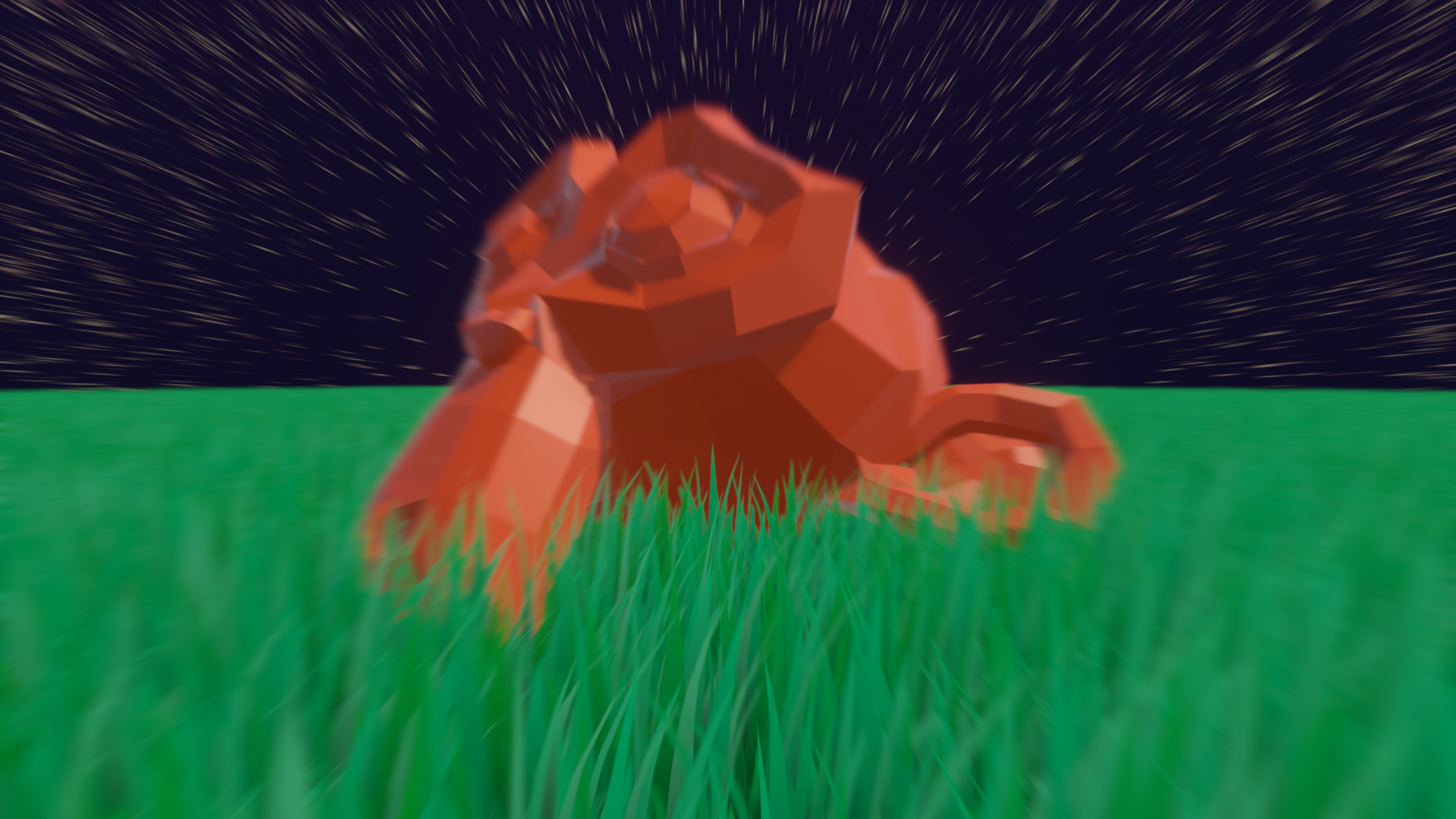
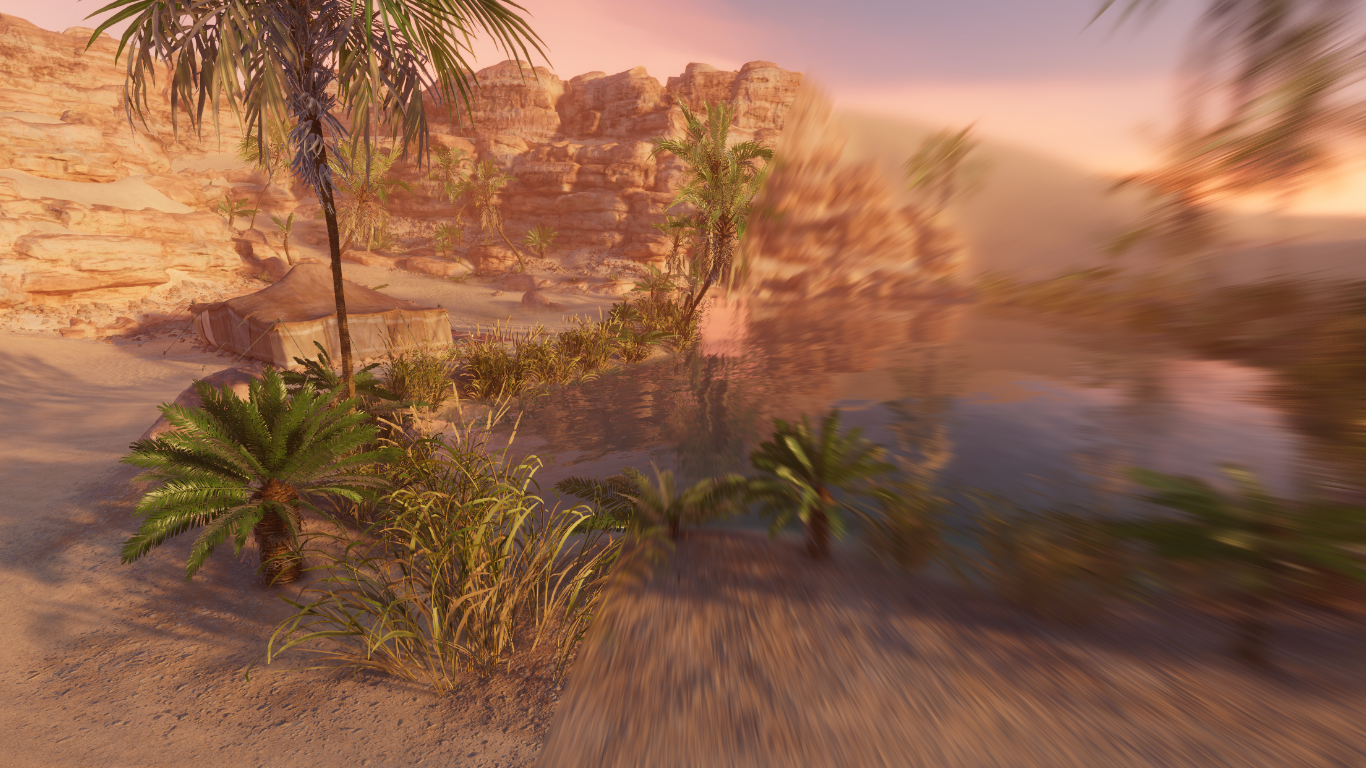
That covers the regular kind of blur. Blur Shaders Pro also comes with a radial blur, where the blurring happens from the center of the screen outwards. Rather than thinking of a square kernel of pixels, imagine drawing a line through the current pixel and the middle of the screen. Blur samples are taken along that line either side of the pixel, with the separation between pixels defined by the step size parameter and the distance of the pixel from the center of the screen. The result is a blur which gets stronger as you move towards the edge of the screen.
That’s the basic tech that drives the blur shaders.
A quick note on Render Graph
which ended up being not very quick now that I’m reading this back after writing it
Render Graph is the newest iteration of the backend code Unity uses to render everything in URP. It’s nothing like Shader Graph, despite the name - it’s not a visual editing tool, but it’s a ‘graph’ in the mathematical sense, being a way of describing how to link render passes together and manage their resources. Unity uses these descriptions to optimize the way textures are used and passes are rendered, and it can sometimes even merge passes for improved performance.
With that in mind, in Unity 6.0 and beyond, you should be using Render Graph for each of your effects which use ScriptableRendererFeature. There’s a fallback ‘compatibility mode’ for the old way of doing things, but this is hidden behind a compiler define symbol in Unity 6.3 and outright removed in Unity 6.4 along with the old Configure and Execute override methods.
This is another pain point for upgrading assets beyond 6.3 if you’re also trying to support 2022.3 for some reason, since you need preprocessor directives to remove the Render Graph code prior to 6.0, but another directive to strip away the non-RG code from 6.4 onwards.
Most of the logic for a Render Graph pass is handled inside RecordRenderGraph, where you read from the frame data and set up any temporary textures needed for your effect.
public override void RecordRenderGraph(RenderGraph renderGraph, ContextContainer frameData)
{
    if(material == null)
    {
        CreateMaterial();   // Helper function to find shader and create material.
    }

    UniversalResourceData resourceData = frameData.Get<UniversalResourceData>();
    UniversalCameraData cameraData = frameData.Get<UniversalCameraData>();

    UniversalRenderer renderer = (UniversalRenderer)cameraData.renderer;
    var colorCopyDescriptor = GetCopyPassDescriptor(cameraData.cameraTargetDescriptor);
    TextureHandle copiedColor = TextureHandle.nullHandle;

    copiedColor = UniversalRenderer.CreateRenderGraphTexture(renderGraph, colorCopyDescriptor, "_BlurColorCopy", false);

    ...
}
Then you set up each pass by specifying exactly which resources can be read from and written to, and which textures are the targets of the pass, as well as any materials or other settings needed in the pass. We use AddRasterRenderPass to set up the pass.
// Perform the horizontal blur pass (source -> temp).
using (var builder = renderGraph.AddRasterRenderPass<HorizontalPassData>("Blur_Horizontal", out var passData, profilingSampler))
{
    passData.material = material;
    passData.inputTexture = resourceData.activeColorTexture;

    builder.UseTexture(resourceData.activeColorTexture, AccessFlags.Read);
    builder.SetRenderAttachment(copiedColor, 0, AccessFlags.Write);
    builder.SetRenderFunc((HorizontalPassData data, RasterGraphContext context) => ExecuteHorizontalPass(context.cmd, data.inputTexture, data.material));
}
You’ll see that texture usage is explicit here. The activeColorTexture is set as read-only with UseTexture, and the copiedColor temporary texture is set as the destination texture for the pass with SetRenderAttachment, which also sets it as write-only. Textures can be set as read-write, but Unity uses this data to optimize passes where possible, so only set the flags according to how you will actually use the textures in your passes.
Passes are structured like this: we have a little class which holds some data for the pass, such as HorizontalPassData here. This should include any managed resources like textures and materials, and it’s fed into the AddRasterRenderPass method.
private class HorizontalPassData
{
    public Material material;
    public TextureHandle inputTexture;
}
Then, we have a callback method such as ExecuteHorizontalPass which receives the data and executes the pass, usually with the Blitter API, which contains methods for copying data from texture to texture with optional material parameters to apply a shader pass to the input texture. This is also where we set shader parameters. AddRasterRenderPass accepts this callback as a parameter of the SetRenderFunc method, which lets us also send over data we set up in HorizontalPassData.
private static void ExecuteHorizontalPass(RasterCommandBuffer cmd, RTHandle source, Material material)
{
    var settings = VolumeManager.instance.stack.GetComponent<BlurSettings>();

    if (settings.strength.value > settings.blurStepSize.value * 2)
    {
        // Set Blur effect properties.
        material.SetInt("_KernelSize", settings.strength.value);
        material.SetFloat("_Spread", settings.strength.value / 7.5f);
        material.SetInt("_BlurStepSize", settings.blurStepSize.value);

        if (settings.blurType.value == BlurType.Gaussian)
        {
            Blitter.BlitTexture(cmd, source, new Vector4(1, 1, 0, 0), material, 0);
        }
        else if (settings.blurType.value == BlurType.Box)
        {
            Blitter.BlitTexture(cmd, source, new Vector4(1, 1, 0, 0), material, 2);
        }
    }
}
In ExecuteHorizontalPass, we are copying the contents of the camera color texture to an intermediate texture and running the horizontal blur kernel, making sure to pick the correct shader pass based on which type of blur we want to do. I believe this method needs to be static or things will break in strange ways which are difficult to debug.
There are similar classes and methods for the second vertical pass:
private class VerticalPassData
{
    public Material material;
    public TextureHandle inputTexture;
}

private static void ExecuteVerticalPass(RasterCommandBuffer cmd, RTHandle source, Material material)
{
    var settings = VolumeManager.instance.stack.GetComponent<BlurSettings>();

    if (settings.strength.value > settings.blurStepSize.value * 2)
    {
        if(settings.blurType.value == BlurType.Gaussian)
        {
            Blitter.BlitTexture(cmd, source, new Vector4(1, 1, 0, 0), material, 1);
        }
        else if (settings.blurType.value == BlurType.Box)
        {
            Blitter.BlitTexture(cmd, source, new Vector4(1, 1, 0, 0), material, 3);
        }
    }
}
And the vertical blur pass inside RecordRenderGraph looks mostly the same, except this time, the target is the activeColorTexture and we are reading from copiedColor.
public override void RecordRenderGraph(RenderGraph renderGraph, ContextContainer frameData)
{
    ...

    // Perform the vertical blur pass (temp -> source).
    using (var builder = renderGraph.AddRasterRenderPass<VerticalPassData>("Blur_Vertical", out var passData, profilingSampler))
    {
        passData.material = material;
        passData.inputTexture = copiedColor;

        builder.UseTexture(copiedColor, AccessFlags.Read);
        builder.SetRenderAttachment(resourceData.activeColorTexture, 0, AccessFlags.Write);
        builder.SetRenderFunc((VerticalPassData data, RasterGraphContext context) => ExecuteVerticalPass(context.cmd, data.inputTexture, data.material));
    }
}
Using Render Graph is a bit of a learning curve if you’re moving from the old way of doing ScriptableRendererFeature and ScriptableRenderPass, but it seems like this API is at least going to stick around for the foreseeable future.
This was just a quick tour of a single effect, but I’d like to properly explore Render Graph in the future. Maybe I’ll have an excuse to do so as part of the Shader Code Basics series someday!
What next?
I’ve already prepared the Snapshot Shaders asset pack line for the future with Snapshot Shaders 2 for URP, and I’m doing the same with Blur Shaders Pro with the release of the new Blur Shaders 2 for URP. With this new version, I’ve been able to support more features than before, including layer-maskable post process passes, which let you blur out only specific objects on the screen.
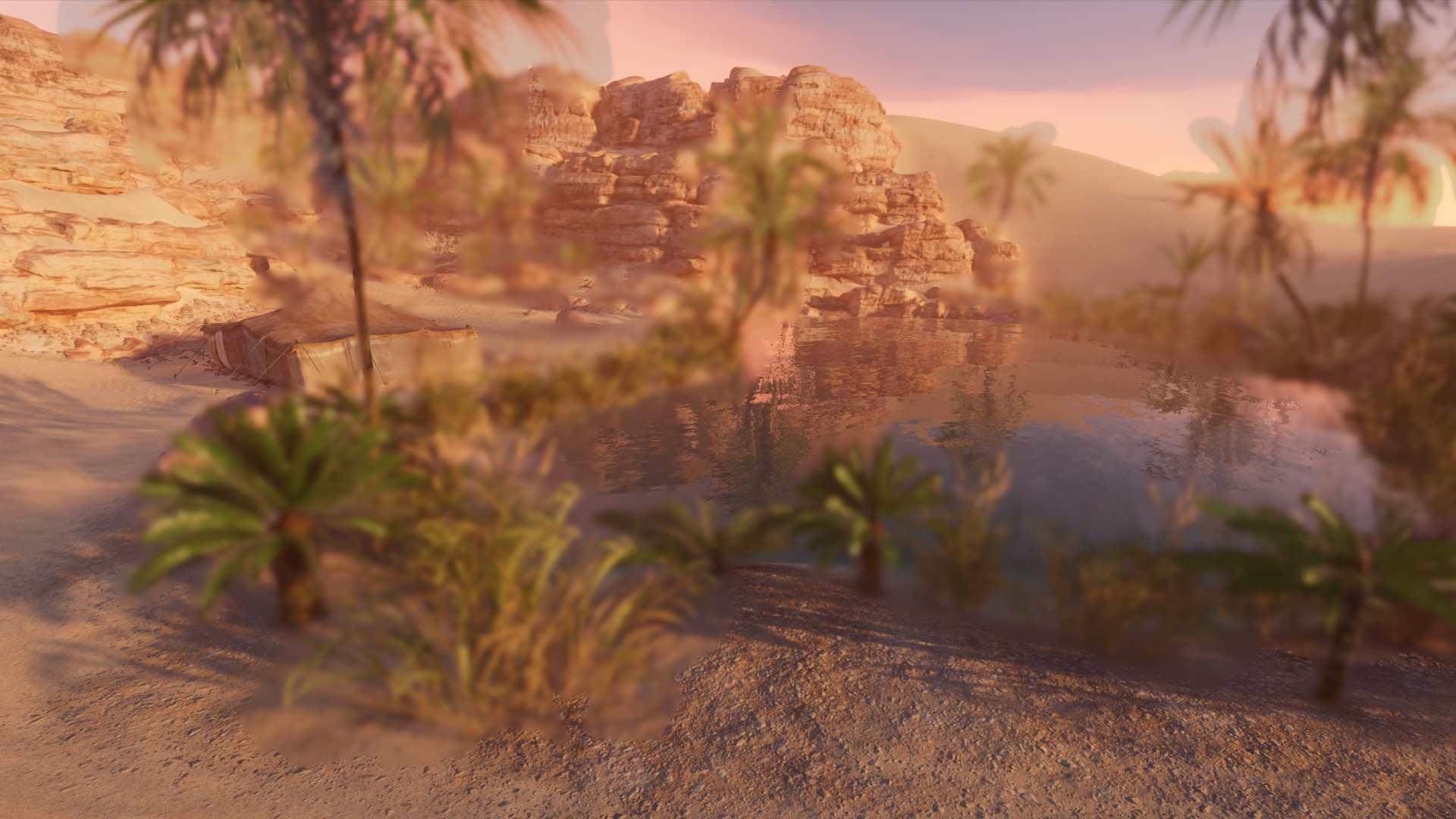
On top of that, I’ve consolidated all the kinds of blur into a single volume component with a simple drop-down to choose between Gaussian, Box, and Radial Blur, plus a Light Streaks effect which I realized is basically a horizontal blur with a luminance threshold. With that one, you can add massive lens flares à la J.J. Abrams.
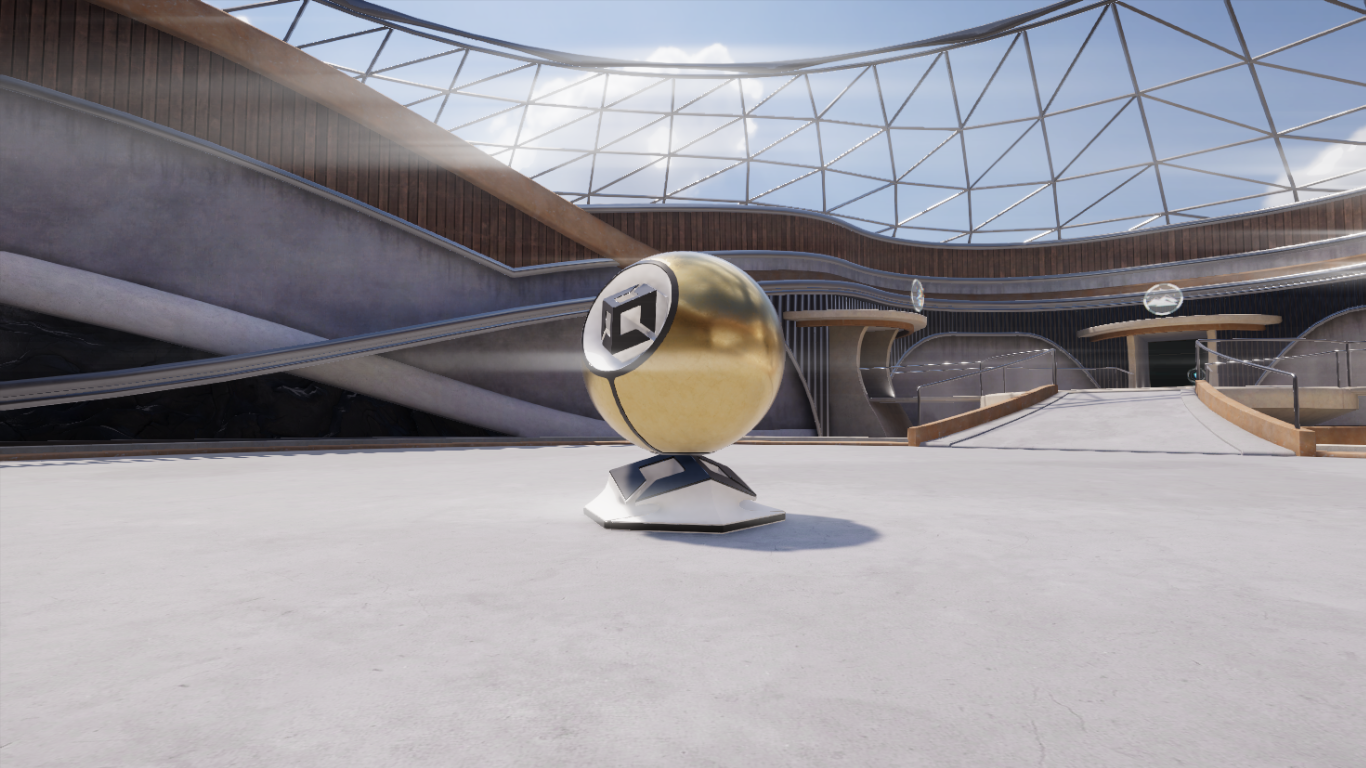
So that’s what’s next, and it’s already here.
If you liked this article, don’t forget to check out the GitHub repos for each of the versions of Blur Shaders Pro:
And I think it’d be really cool if you took a look at the new Blur Shaders 2 for URP! I spent a lot of time trying to make that and the rest of the effects in Snapshot Shaders 2 for URP as performant and feature-filled as possible and I hope you’ll find them useful in a game of yours.