In Part 5, we learned how to deform shapes with the vertex shader and use tessellation shaders to improve the fidelity of a wave shader effect. In Part 6, we’re going to learn all about lighting in shaders. It’s a hefty one, so strap in.
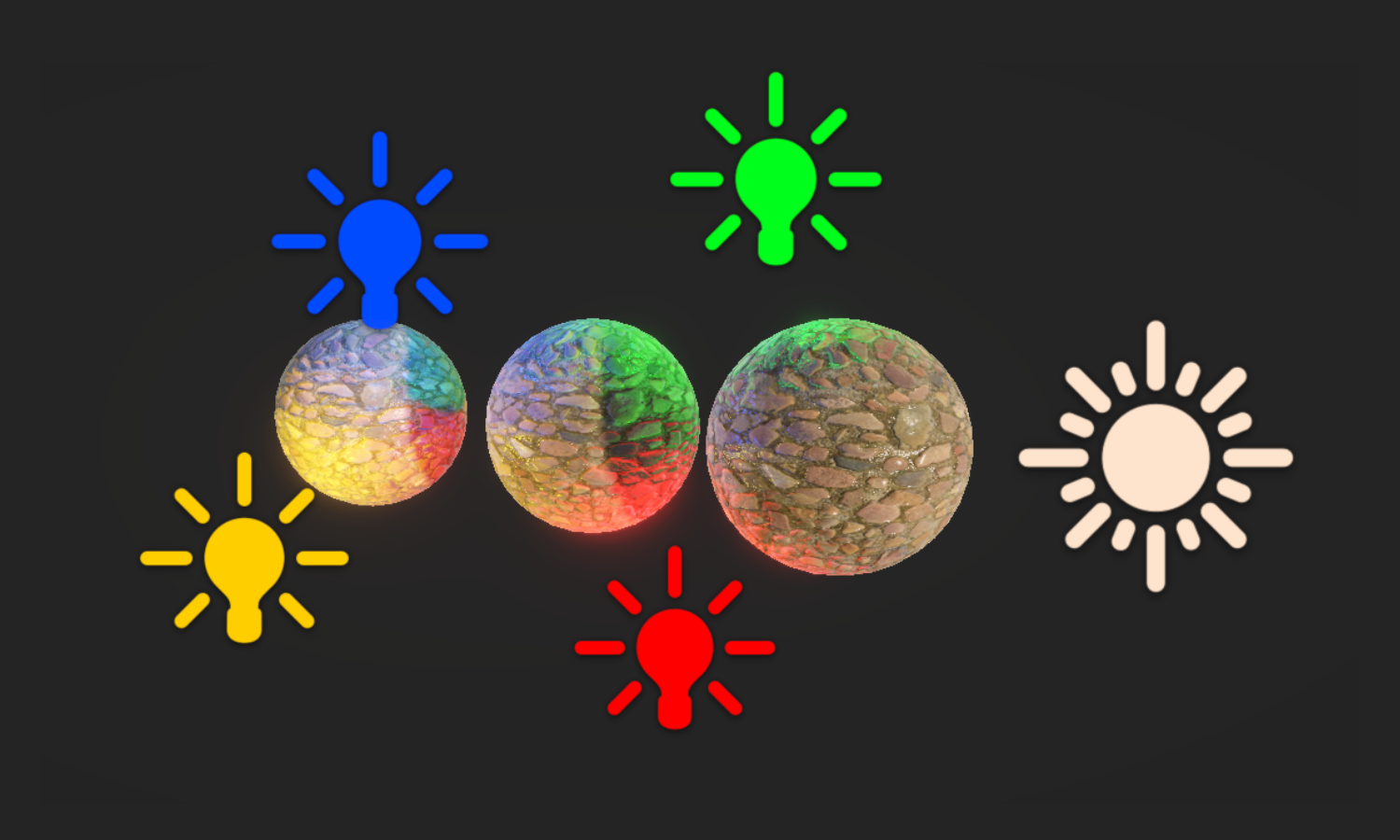
So far, all of our shaders have resulted in objects looking flat, and that’s because we are applying no lighting at all to them. Regardless of whether an object is in full view of the main light or obscured by something else in the scene, or if part of the mesh points away from the light, the object acts like it is fully lit. Today, let’s change that.
Lighting Theory
First, let’s learn about some basic lighting techniques. Real-world lighting is far too complicated to model in realtime, as literally quadrillions of photons will reach a tiny \(1cm^2\) surface each second, so we use approximation models to simulate light behavior instead. One of the simplest models, called the Phong reflection model (named for its creator, Bui Tuong Phong), splits light into three primary components, which can be added together to find the total amount of light.
The first component is ambient lighting, which you can think of as ‘background’ lighting. Even parts of an object facing away from all light sources usually appear slightly lit due to indirect reflections from other scene element which reflect onto the shadowed portion of the object. Modelling indirect reflections accurately is also quite difficult, so as a crude approximation for ambient lighting, we can add a small constant level of light to everything in the scene. This works quite well for scenes with one dominant light source like the sun.
Next, we have diffuse lighting, which is usually the most important and immediately obvious component of lighting, and is dependent on the angle between the surface facing direction and the direction of the light. If something faces towards the light source, it has higher diffuse lighting, and vice versa. This kind of lighting doesn’t depend on the angle that you view the surface at, because it models the way light acts upon a rough surface, where light rays scatter in all directions evenly when they hit the surface. The amount of outgoing light is just proportional to the amount of incoming light.
Finally, we have specular lighting, which causes shiny highlights on objects. It arises when the surface is sufficiently smooth to reflect a high proprtion of incoming light rays in the same direction. It’s sort of the opposite of diffuse lighting in that respect, although surfaces usually have a bit of both. Because of this, specular lighting is dependent on the viewing angle, as well as the light direction and surface direction.
Subscribe to my Patreon for perks including early access, your name in the credits of my videos, and bonus access to several premium shader packs!

Lighting in Shaders
Let’s put this into action inside a shader. I’m going to base this code off the BasicTexturing shader from Part 2, but I have renamed it BasicLighting (remember to change the name of the shader at the top of the shader file, as always).
Shader "Basics/BasicLighting"
Let’s add some properties. To start, I only need two additional properties for this shader: the first is _AmbientLighting, which I will express as a Color for now. This doesn’t need to be particularly strong, so I settled on a default value of 0.2 in each channel. We can tweak this value later if our environment is especially brightly lit or dark, and we can even tint the ambient lighting a little if we decided not to use identical values in each channel.
The second new property is a float called _Glossiness, which controls how shiny the surface is, and therefore how the specular highlight will act. Larger values result in a smaller, stronger highlight area.
Properties
{
    _BaseColor("Base Color", Color) = (1, 1, 1, 1)
    _BaseTexture("Base Texture", 2D) = "white" {}
    _AmbientLighting("Ambient Lighting", Color) = (0.2, 0.2, 0.2, 1)
    _Glossiness("Glossiness", Float) = 1
}
Remember to include these new properties in the CBUFFER so that we can use them later inside the fragment shader.
CBUFFER_START(UnityPerMaterial)
    float4 _BaseColor;
    float4 _BaseTexture_ST;
    float3 _AmbientLighting;
    float _Glossiness;
CBUFFER_END
Since we are now working with lighting, we can also change the type of our main shader pass. After all, this shader is no longer ‘unlit’, is it? We can change the LightMode tag from SRPDefaultUnlit to UniversalForward, which is a tag that Unity understand to mean “this is a URP shader pass which does lighting”.
Tags
{
    "LightMode" = "UniversalForward"
}
Let’s also include a new file from the URP shader library called Lighting.hlsl, which as I’m sure you can guess, contains lots of functions to help us access the lights in the scene.
#include "Packages/com.unity.render-pipelines.universal/ShaderLibrary/Core.hlsl"
#include "Packages/com.unity.render-pipelines.universal/ShaderLibrary/Lighting.hlsl"
Now let’s think about the sort of information our shader will need from the mesh (which we can put in the appdata struct), and which data will be needed in the fragment shader (which goes in the v2f struct). As I mentioned, diffuse lighting depends on the angle between the surface direction and the light direction. Typically, we can represent the direction of a surface using a normal vector, which is perpendicular to the surface itself and points outwards. This vector represents a direction so it should be a unit vector, where its length/magnitude is equal to 1 - this is what you get when you normalize a vector. That’ll be important for later but for now let’s just include the normal vector inside appdata. We briefly saw in Part 4 when we wrote a DepthNormals pass that the normal vector uses the NORMAL semantic.
struct appdata
{
    float4 positionOS : POSITION;
    float2 uv : TEXCOORD0;
    float3 normalOS : NORMAL;
};
When we calculate lighting inside the fragment shader, we will need the normal vector in world space, so let’s include that in the v2f struct. I’m also going to need the position in world space too, but we’ll see why when we reach the fragment shader function. And finally, as I mentioned, specular lighting relies on the angle between the viewer and the surface. We can include the view direction vector in the v2f struct, which points from the point on the surface to the viewer (i.e. the camera).
struct v2f
{
    float4 positionCS : SV_POSITION;
    float2 uv : TEXCOORD0;
    float3 normalWS : TEXCOORD1;
    float3 positionWS : TEXCOORD2;
    float3 viewWS : TEXCOORD3;
};
Of course, now we must calculate these new vectors inside the vertex shader. The clip-space position and the UVs work as before, and we have seen the TransformObjectToWorldNormal function before in Part 4, so let’s use it here. You should also be familiar with the TransformObjectToWorld function, which we will use here to get the world space position vector.
The only new function I’ll use here is called GetWorldSpaceViewDir, which takes in the world-space position as input and gives us a world space view direction as a result. This vector isn’t actually normalized, even though I want to use it to represent a direction. There’s a function called GetWorldSpaceNormalizedViewDir which does that for you, but I won’t bother using it for reasons you’ll see shortly.
v2f vert(appdata v)
{
    v2f o = (v2f)0;

    o.positionCS = TransformObjectToHClip(v.positionOS.xyz);
    o.uv = TRANSFORM_TEX(v.uv, _BaseTexture);
    o.normalWS = TransformObjectToWorldNormal(v.normalOS);
    o.positionWS = TransformObjectToWorld(v.positionOS.xyz);
    o.viewWS = GetWorldSpaceViewDir(o.positionWS);

    return o;
}
That’s it for the vertex shader, so let’s move on to the fragment shader. Currently, we are just sampling a texture and multiplying it by _BaseColor. We can leave this code alone for now. Above it, let’s calculate some lighting. The very first thing I’ll do, before I even get the light data, is set up some data I’m going to be using inside this function. First, let’s get the normal vector using the NormalizeNormalPerPixel function. Actually, you might be wondering why we even use this function in the first place.
In the following image, imagine we are looking at part of the mesh from the side, with the normal vector at two of the vertices visualized. Both are unit vectors, and I’ve drawn a dotted line between the endpoints of those normal vectors.
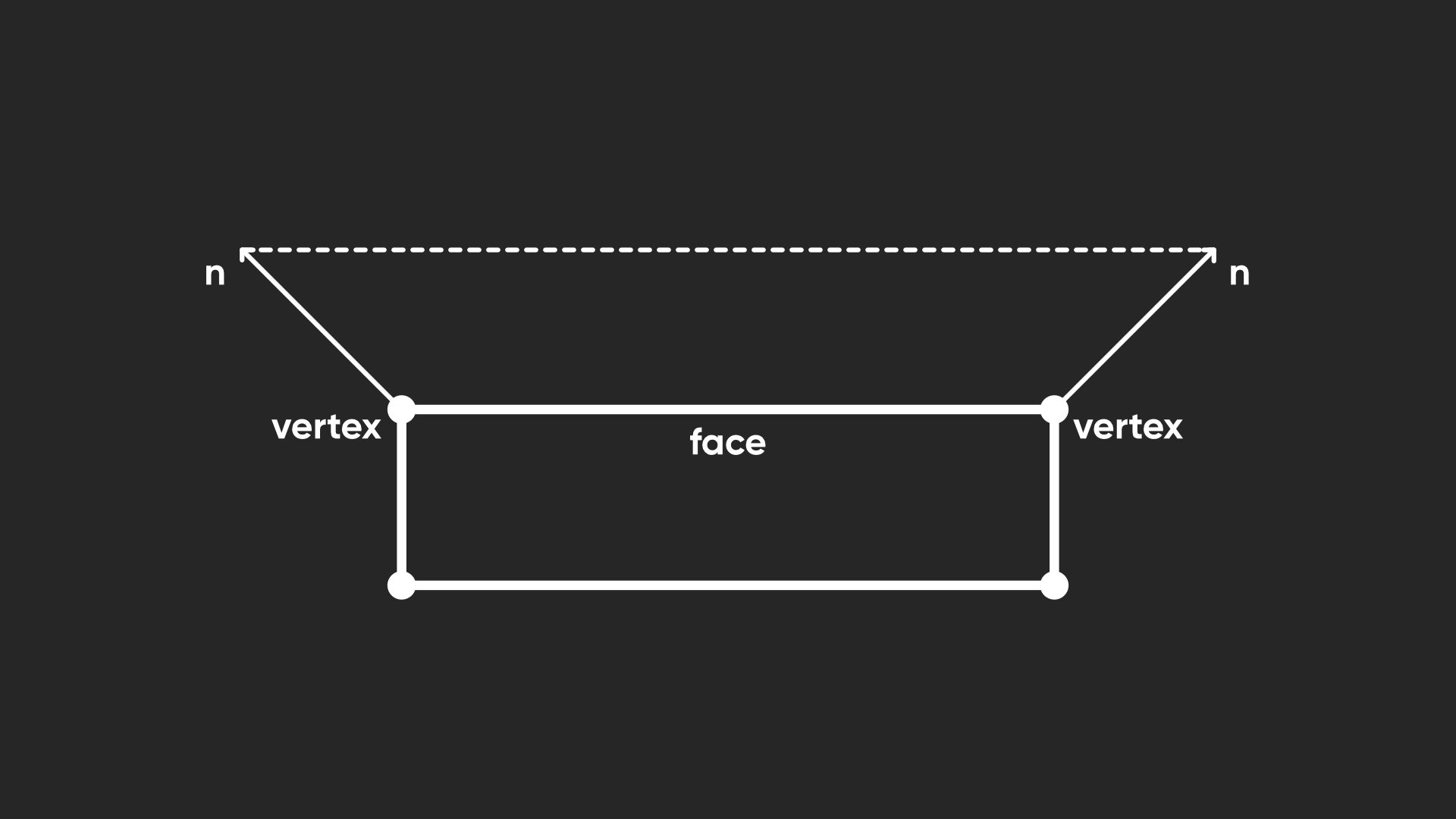
When we rasterize this face into pixels, Unity interpolates the normal vectors for the intermediate pixels between these vertex normals. The problem is, with linear interpolation, it’s like drawing a straight line between the two endpoints (the dotted line below) and then picking a point on that line. The pixel halfway between the vertices gets a normal vector halfway through the dotted line.
If we’re working with vectors, in most cases, all of these interpolated vectors (the pink vectors) will be shorter than the original unit vectors (the blue vectors show the length we need). Since the later fragment calculations rely on the normal vector being unit length, we need to normalize each vector.
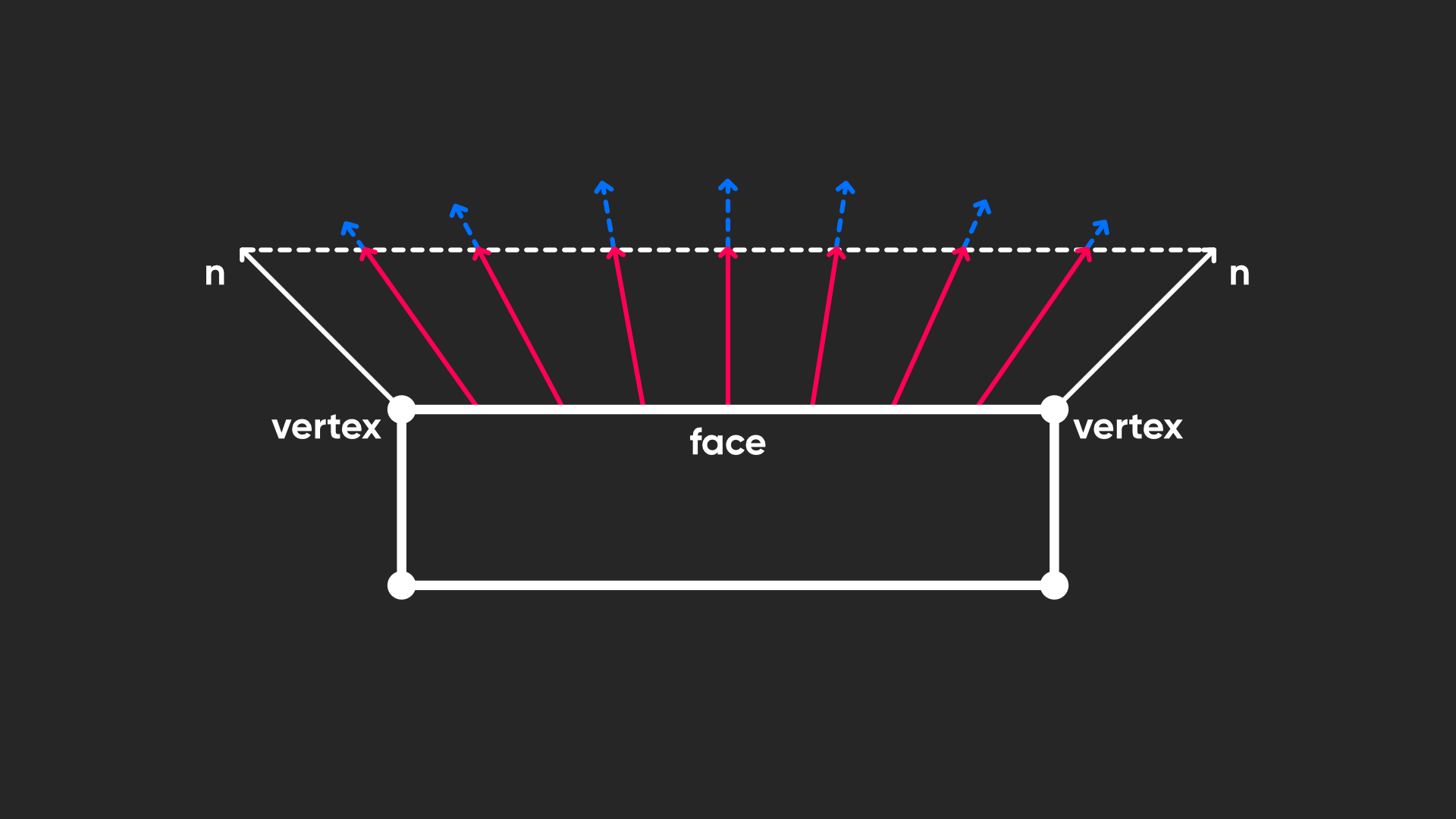
We could use HLSL’s built-in normalize function for this, but NormalizeNormalPerPixel includes a bit of safety to handle cases where a zero vector is input.
float4 frag(v2f i) : SV_TARGET
{
    float3 normalWS = NormalizeNormalPerPixel(i.normalWS);

    ...
Next, we need to do something similar for the view direction vector. I don’t think there’s a named library function for specifically normalizing the view vector, so I’ll just use the normalize function. Then, I’m also going to get a shadow coordinate. I want to be able to read the light’s shadow mapping data, and to do that, we need to supply a shadow coordinate to sample the shadow maps. Fortunately, Unity provides the TransformWorldToShadowCoord function which accepts the world-space position as input, so we don’t need to think too much about this.
float3 normalWS = NormalizeNormalPerPixel(i.normalWS);
float3 viewWS = normalize(i.viewWS);
float4 shadowCoord = TransformWorldToShadowCoord(i.positionWS);
Now, we can access the main light in our scene using the GetMainLight function, which optionally accepts the shadow coordinate as input. Usually, the main light refers to the first directional light, which you are probably using to model the sunlight, just like the URP default scene template. We get the light in the form of a struct containing these values: direction, color, distanceAttenuation, shadowAttenuation, and layerMask. Here’s the library definition of this struct, contained inside the RealtimeLights.hlsl file which itself is included from Lighting.hlsl:
// Abstraction over Light shading data.
struct Light
{
    half3   direction;
    half3   color;
    float   distanceAttenuation; // full-float precision required on some platforms
    half    shadowAttenuation;
    uint    layerMask;
};
I don’t remember if I’ve introduced the half or uint types before, but essentially, half is a half-precision floating-point number, although on many platforms it is automatically treated as a single-precision float anyway, and uint is an unsigned integer, which can represent as many values as a regular int, but its range starts at 0 and extends twice as far as an int, without support for negatives.
We won’t think about the layerMask yet. The direction and color should make sense, and then there are these attenuation factors. That’s just a fancy way of saying the light gets reduced if we are far away or in shadow, and they are values between 0 and 1. When one of these values is equal to 1, that means the light isn’t being reduced at all – either we are very close to the light, or it is not obscured by another object.
For a directional light, the distance attenuation is always 1, but you can keep that in mind for point lights whose attenuation will fall proportional to the square of the distance (maybe you’ve heard of the “inverse-square law” before). With that in mind, I’m going to create a variable to store the main light’s overall color, which is as easy as multiplying its color and its two attenuation values together.
float3 normalWS = NormalizeNormalPerPixel(i.normalWS);
float3 viewWS = normalize(i.viewWS);
float4 shadowCoord = TransformWorldToShadowCoord(i.positionWS);

Light mainLight = GetMainLight(shadowCoord);
float3 mainLightColor = mainLight.distanceAttenuation * mainLight.shadowAttenuation * mainLight.color;
Next, let’s create a variable for the ambient lighting. For now, it’s a bit redundant since we’re just using the property we set up, but later I’ll swap this for something different.
 Light mainLight = GetMainLight(shadowCoord);
 float3 mainLightColor = mainLight.distanceAttenuation * mainLight.shadowAttenuation * mainLight.color;

 float3 ambientLighting = _AmbientLighting;
Then, we can calculate the amount of diffuse lighting. As I mentioned, diffuse lighting is related to the angle between the surface normal vector and the light direction. When both vectors point in the same direction, we get maximum light, and when they are perpendicular, we get no light at all, with a smooth falloff between those extremes.
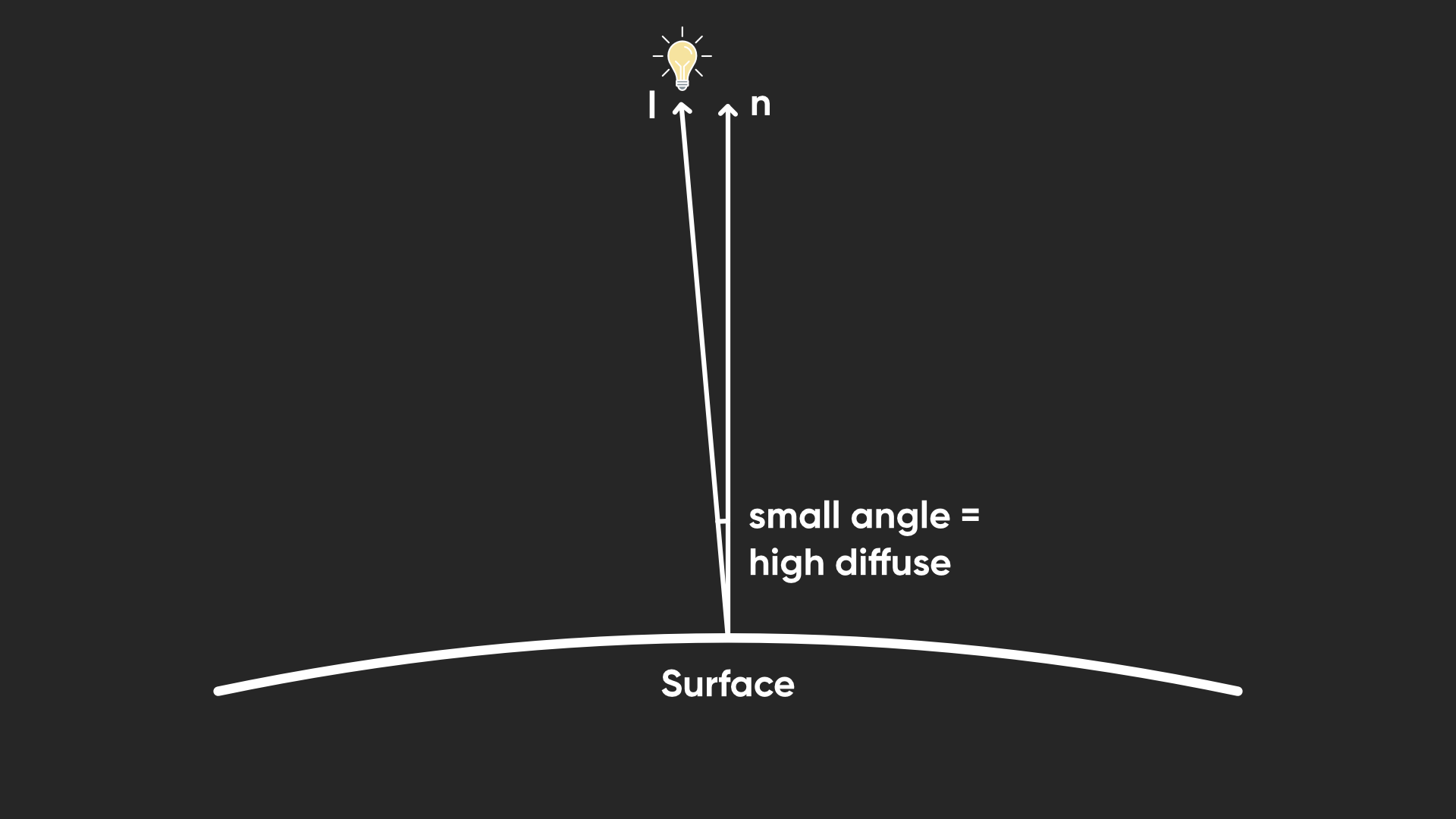
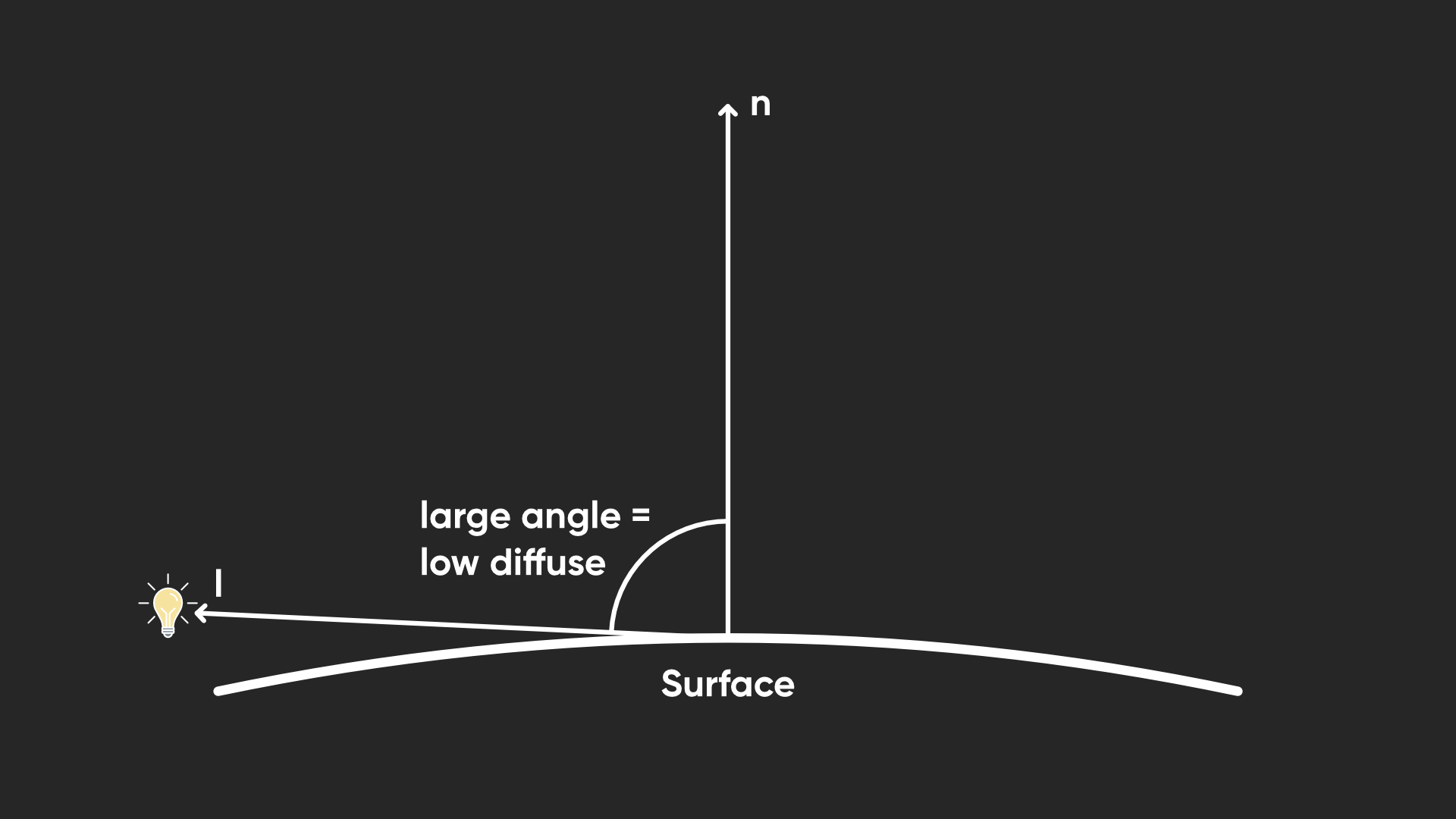
We can express this as a function, where the diffuse lighting is equal to the cosine of the angle between the vectors. I’ll also display the formula for the dot product between two vectors.
\[l_d = cos\, \theta\] \[n \cdot l = |n|\, |l|\ cos\, \theta\]The dot product formula also has a cosine of the angle in there, multiplied by both the lengths of the input vectors. Now, this is why we needed to use unit vectors, since these both evaluate to 1 and we can simplify the expression for the dot product: for any two unit vectors, their dot product is equal to the cosine of the angle between them, which is equal to the amount of diffuse lighting.
\[l_d = n \cdot l = cos\, \theta\]That makes it very easy to express in HLSL, since there is a built-in dot function. This function actually goes below 0 though – when both vectors are opposite, the result is -1, so I’ll use saturate to clamp the output to a 0 – 1 range, and then I’ll multiply by the light color.
float3 ambientLighting = _AmbientLighting;

float3 diffuseLighting = saturate(dot(normalWS, mainLight.direction)) * mainLightColor;
Next, let’s handle the specular lighting. This is equal to the dot product of the view vector with the reflection of the light vector across the normal vector.
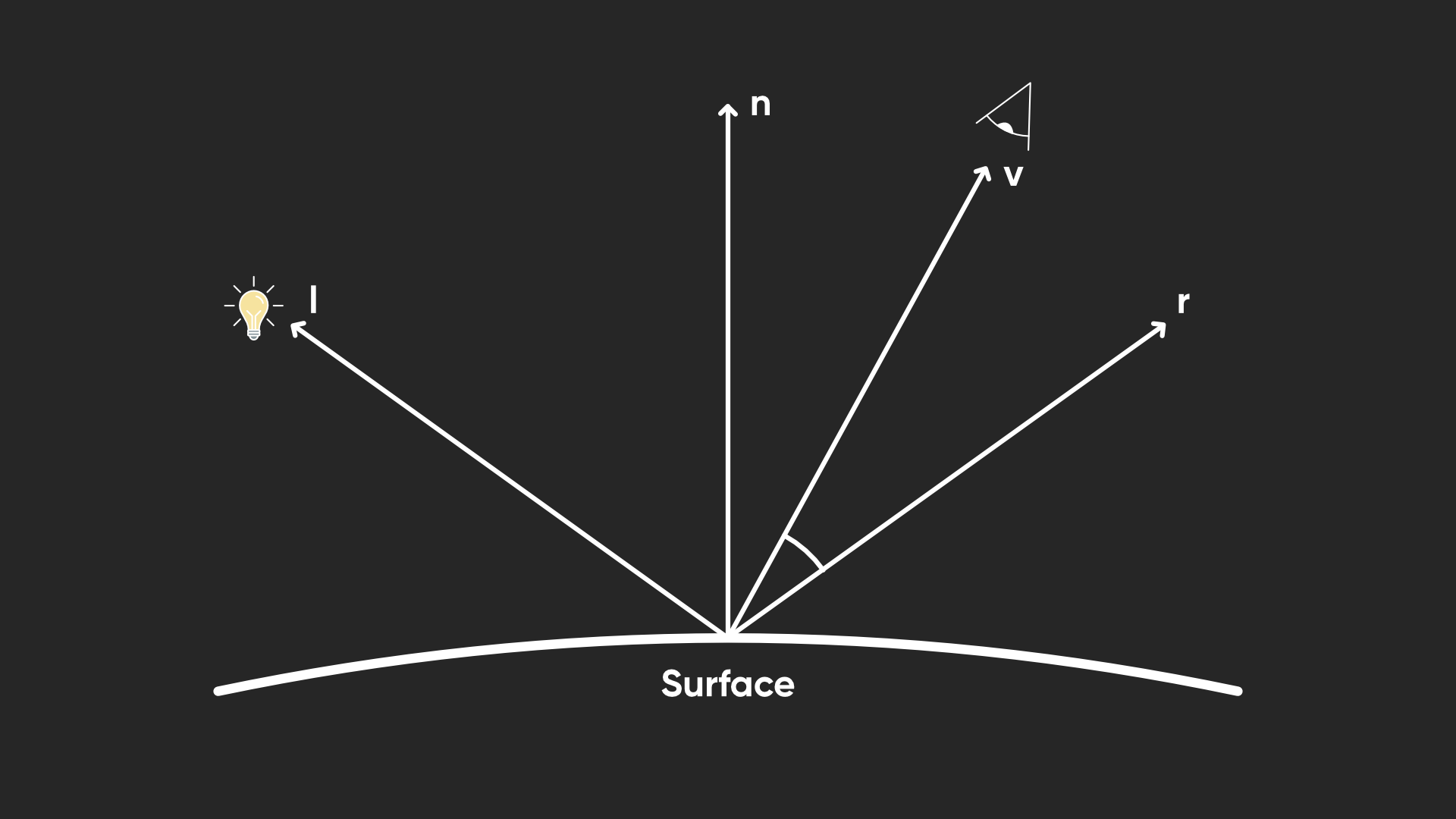
You can kind of see in the diagram that specular lighting comes about from lots of light reflecting off the object all in the same direction and directly into your eye.
First, we need to calculate that reflected vector, which we do with HLSL’s reflect function. The first parameter is the vector being reflected, and the function expects this to point towards the surface. Currently it is pointing away from the surface towards the light itself, so we can negate the vector to flip its direction. The second parameter is the normal vector which we are reflecting the first vector in.
Then, we can calculate the amount of specular lighting by taking the dot product between the reflected light vector and the view vector. Once again, I’ll saturate it to bound it from 0 to 1. This will eventually give us a bright white highlight on the surface, but I want to use the _Glossiness property to control its size. I will do that by raising the dot product result to the power of _Glossiness – since we’re always getting a result between 0 and 1, this means the highlight gets smaller the glossier the surface is, which is close enough to how shininess works in the real world. I’ll also multiply by the main light color here.
float3 reflectedVector = reflect(-mainLight.direction, normalWS);

float3 specularLighting = pow(saturate(dot(reflectedVector, viewWS)), _Glossiness) * mainLightColor;
Unfortunately, as you increase _Glossiness, it will have a smaller and smaller impact on the size of the highlight the higher you go (you have to really start cranking it into the hundreds or even thousands for a tiny change), so I’m actually going to use 2 to the power of _Glossiness here instead, with HLSL’s pow function. Now the change in the size of the highlight is a little more perceptually uniform as you change the _Glossiness in the Inspector.
float3 specularLighting = pow(saturate(dot(reflectedVector, viewWS)), pow(2.0f, _Glossiness)) * mainLightColor;
Now we get to the final part of the fragment shader, where we combine the lighting with the original unlit color we were previously using. I’m going to refactor the existing code a bit, and calculate the final output color for the shader by adding the ambient and diffuse lighting together and multiplying them by the base color, the adding the specular lighting at the end. By adding the specular lighting and not multiplying it by the base color, the specular highlight ends up being far more visible than it otherwise would be. I can then output this new color, although I want to also output the alpha component of the base color unaffected by the lighting.
float4 baseColor = SAMPLE_TEXTURE2D(_BaseTexture, sampler_BaseTexture, i.uv) * _BaseColor;

float3 finalColor = (ambientLighting + diffuseLighting) * baseColor.rgb + specularLighting;

return float4(finalColor, baseColor.a);
If we hop into the Scene View, we can use this shader on a sphere mesh and see it react to the light in realtime. If we move the camera around, then the diffuse lighting doesn’t move around the object, but the specular highlight will follow the position of the camera. And if we rotate the directional light, then the shaded region of the diffuse lighting will change position too.
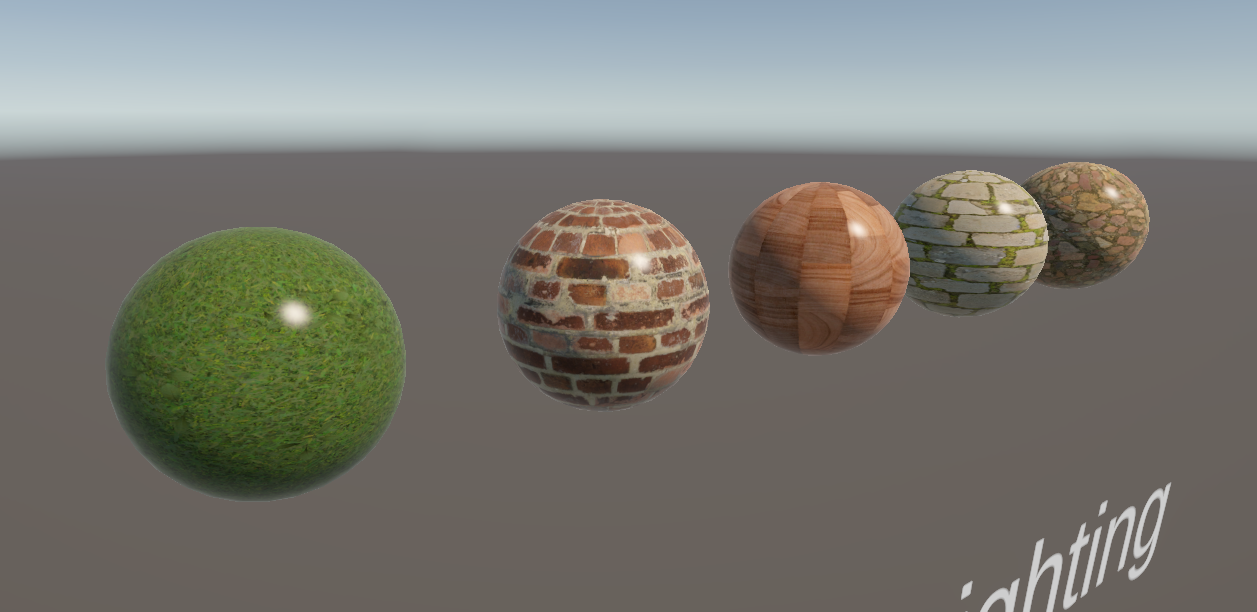
The one thing that doesn’t seem to work right now is the shadows from other objects, and there’s a good reason for that: welcome to what I like to call keyword soup.
Subscribe to my Patreon for perks including early access, your name in the credits of my videos, and bonus access to several premium shader packs!
Keyword Soup
We included shadow attenuation in our lighting code, but we can’t see any shadows, and that’s because we need some keywords. Keywords are sort of like switches we can toggle on our shaders. Later, we will add our own custom keywords, but Unity defines quite a few, and we can add them to shaders to enable or disable certain features. For instance, inside URP’s Shadows.hlsl library file, here is part of the code that Unity uses under the hood to get the shadow attenuation values.
half MainLightRealtimeShadow(float4 shadowCoord, half4 shadowParams, ShadowSamplingData shadowSamplingData)
{
    #if !defined(MAIN_LIGHT_CALCULATE_SHADOWS)
        return half(1.0);
    #endif

    #if defined(_MAIN_LIGHT_SHADOWS_SCREEN) && !defined(_SURFACE_TYPE_TRANSPARENT)
        return SampleScreenSpaceShadowmap(shadowCoord);
    #else
        return SampleShadowmap(TEXTURE2D_ARGS(_MainLightShadowmapTexture, sampler_LinearClampCompare), shadowCoord, shadowSamplingData, shadowParams, false);
    #endif
}
You can see here on the first line of the function body that Unity uses a preprocessor directive to check if this thing called MAIN_LIGHT_CALCULATE_SHADOWS is defined, and if not, the function just returns 1, which means there is never any shadow. Unity only ever retrieves real shadow values if this thing is defined. In turn, by scrolling to the top of the file, we can see that this MAIN_LIGHT_CALCULATE_SHADOWS thing only gets defined if one of these other things is defined, either _MAIN_LIGHT_SHADOWS, _MAIN_LIGHT_SHADOWS_CASCADE, or _MAIN_LIGHT_SHADOWS_SCREEN. These three things are keywords, and our shader does not define any of them currently.
#if defined(_MAIN_LIGHT_SHADOWS) || defined(_MAIN_LIGHT_SHADOWS_CASCADE) || defined(_MAIN_LIGHT_SHADOWS_SCREEN)
    #define MAIN_LIGHT_CALCULATE_SHADOWS

    ...
#endif
Now, finding out which Unity keywords you’re meant to add to enable specific features in your shaders can be very annoying, as they are not terribly well documented anywhere, so one trick I like to use is to literally just open up one of URP’s basic shaders and peek at what sort of keywords they define. If you scroll down in your Project View to the Packages section, you can find the URP included shaders in Packages/Universal Render Pipeline/Shaders and just open one, such as Lit.shader. The include files we’ve been using are mostly included in Packages/Universal Render Pipeline/ShaderLibrary.

You won’t be able to modify them, but we can at least see how they are written. Inside the UniversalForward pass in Lit.shader, we can see some keyword soup - here’s just some of it:
// -------------------------------------
// Universal Pipeline keywords
#pragma multi_compile _ _MAIN_LIGHT_SHADOWS _MAIN_LIGHT_SHADOWS_CASCADE _MAIN_LIGHT_SHADOWS_SCREEN
#pragma multi_compile _ _ADDITIONAL_LIGHTS_VERTEX _ADDITIONAL_LIGHTS
#pragma multi_compile _ EVALUATE_SH_MIXED EVALUATE_SH_VERTEX
#pragma multi_compile_fragment _ _ADDITIONAL_LIGHT_SHADOWS
#pragma multi_compile_fragment _ _REFLECTION_PROBE_BLENDING
#pragma multi_compile_fragment _ _REFLECTION_PROBE_BOX_PROJECTION
#pragma multi_compile_fragment _ _SHADOWS_SOFT _SHADOWS_SOFT_LOW _SHADOWS_SOFT_MEDIUM _SHADOWS_SOFT_HIGH
#pragma multi_compile_fragment _ _SCREEN_SPACE_OCCLUSION
#pragma multi_compile_fragment _ _DBUFFER_MRT1 _DBUFFER_MRT2 _DBUFFER_MRT3
#pragma multi_compile_fragment _ _LIGHT_COOKIES
#pragma multi_compile _ _LIGHT_LAYERS
#pragma multi_compile _ _FORWARD_PLUS
#include_with_pragmas "Packages/com.unity.render-pipelines.core/ShaderLibrary/FoveatedRenderingKeywords.hlsl"
#include_with_pragmas "Packages/com.unity.render-pipelines.universal/ShaderLibrary/RenderingLayers.hlsl"
We group keywords together on each line, and only one member of a group can be active at once. The one at the top of this section looks like it has those three keywords we just saw in the shadow attenuation function, so let’s yoink them and put them at the top of our own UniversalForward pass, just above the include files.
#pragma multi_compile _ _MAIN_LIGHT_SHADOWS _MAIN_LIGHT_SHADOWS_CASCADE _MAIN_LIGHT_SHADOWS_SCREEN

#include "Packages/com.unity.render-pipelines.universal/ShaderLibrary/Core.hlsl"
#include "Packages/com.unity.render-pipelines.universal/ShaderLibrary/Lighting.hlsl"
We say #pragma multi_compile, which means Unity is going to compile a separate shader variant under the hood for every possible combination of these keywords being enabled and disabled. Then, we put a single underscore, which represents a sort of ‘null’ keyword which is set when none of the following keywords are set. And then we name all the keywords in the group.
These three keywords represent three different ways Unity can render shadows: the first is for regular shadow mapping, the second includes shadow cascades where you change shadow quality based on the distance from the camera, and the third is for screen-space shadow mapping. I don’t really care which sort of shadows are being used, but we do need all of these to cover our bases and ensure shadows always work, no matter which shadow settings someone is using.
I also like the look of another keyword from Lit.shader, called _SHADOWS_SOFT (which has several extra keywords for quality levels). This one is for blending the edges of shadows slightly for a softer look. It uses multi_compile_fragment, which just means this keyword is only available in the fragment shader. I can include this in our own shader file too.
#pragma multi_compile _ _MAIN_LIGHT_SHADOWS _MAIN_LIGHT_SHADOWS_CASCADE _MAIN_LIGHT_SHADOWS_SCREEN
#pragma multi_compile_fragment _ _SHADOWS_SOFT _SHADOWS_SOFT_LOW _SHADOWS_SOFT_MEDIUM _SHADOWS_SOFT_HIGH

#include "Packages/com.unity.render-pipelines.universal/ShaderLibrary/Core.hlsl"
#include "Packages/com.unity.render-pipelines.universal/ShaderLibrary/Lighting.hlsl"
Now, I’ve copied both of these keyword groups into my own shader, just below the include files, and I can go back to the Scene View and see shadows working properly on my sphere. If I put a second sphere in the way which uses Lit.shader in its material, my own object will be in shadow.
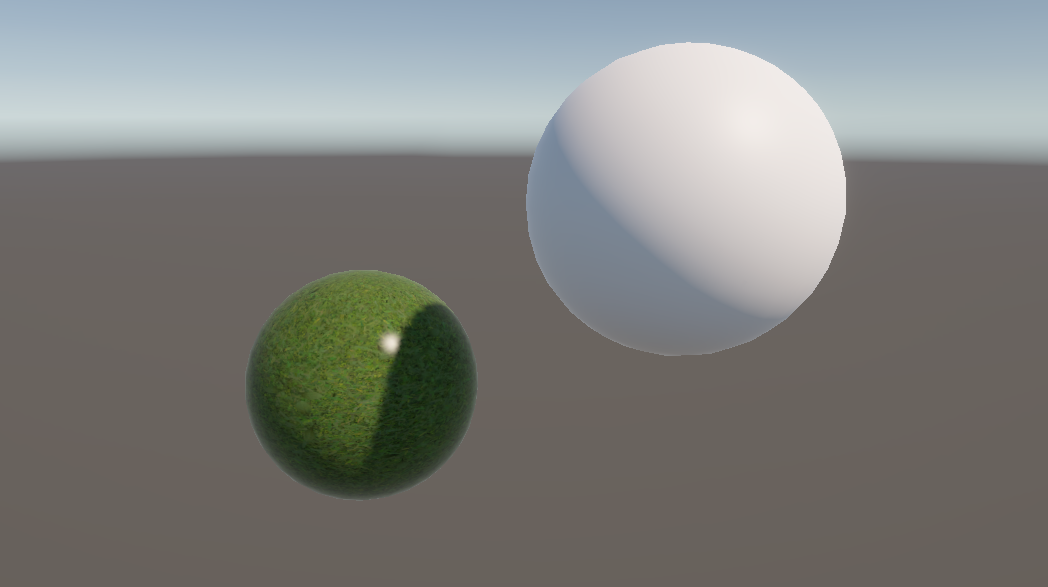
Currently, materials using the BasicLighting shader won’t cast shadows onto other objects though. We’ll cover that near the end of the tutorial.
Next, I want to revisit the way ambient lighting works in the shader.
Subscribe to my Patreon for perks including early access, your name in the credits of my videos, and bonus access to several premium shader packs!
Spherical Harmonics
Let’s disable the main directional light for a second.
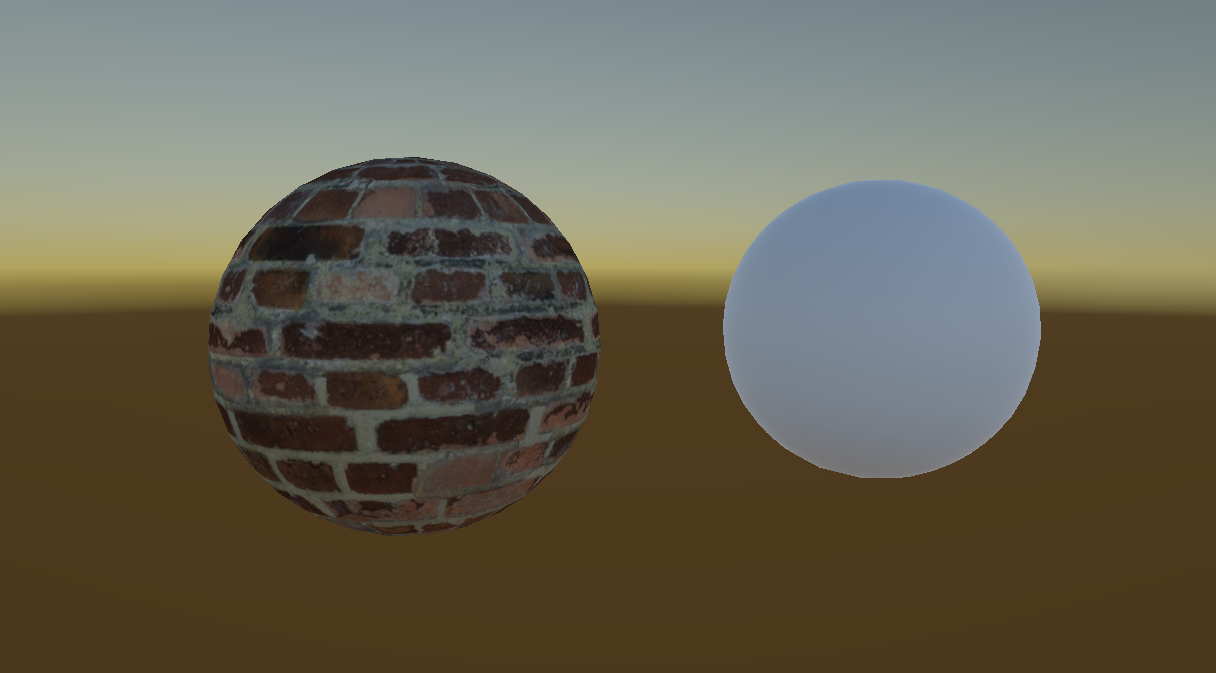
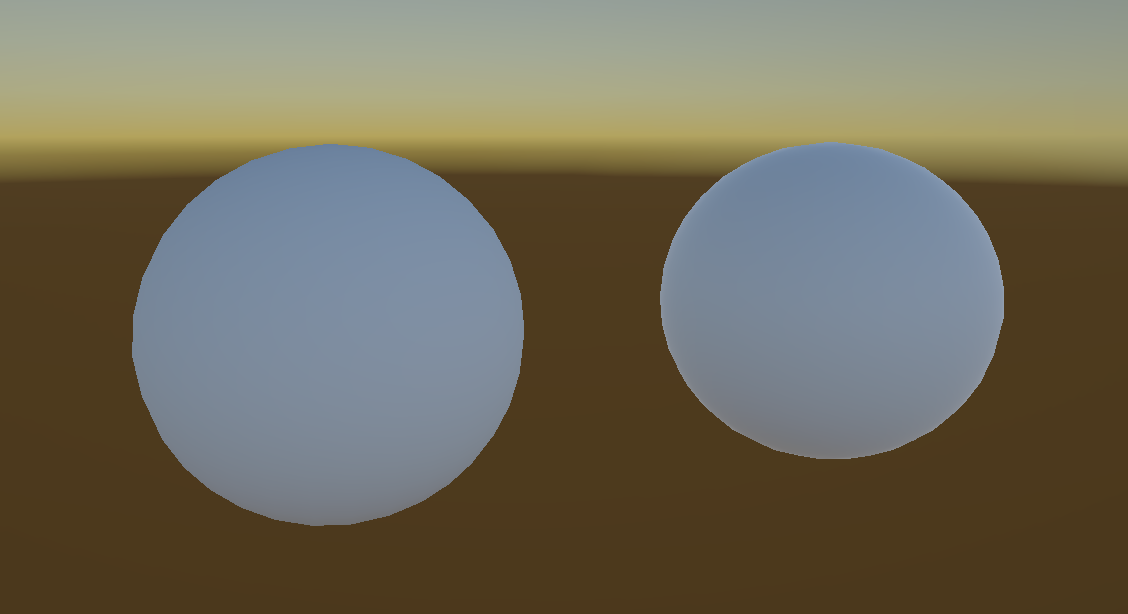
Nice to see our shader doesn’t immediately break, and it’s just showing the ambient light we set up. If we compare it with the URP Lit shader, you’ll notice a very subtle lighting difference between them: the Lit shader is darker on the bottom and has a slightly bluish tint on the top, and that’s because it gets its ambient light from the environment, particularly the skybox. We can do the same, and it’s actually quite simple to implement.
Inside the shader, we are currently setting the ambient light using the _AmbientLighting property we created, but instead, we can grab the environmental ambient light using a function called SampleSH instead, which stands for “spherical harmonics”. This function takes in the world-space normal vector as input.
float3 ambientLighting = SampleSH(normalWS);
Under the hood this function is a bit complicated, but thankfully this is all we need to do to use it. If we go back to the Scene View, our sphere will show the same behavior as the URP Lit shader. To illustrate the effect better, the left sphere now just uses the same color output as the URP Lit sphere on the right.
This is down to preference, of course – if you think it’s more useful to just use the property we set up before, then you can keep that instead. I’m actually gonna leave the property here even though I’m not using it now, and I’ll revisit it in a future tutorial.
That’s not the only difference between the URP Lit shader and our shader.
Fresnel Lighting
With the main light turned back on, you’ll see this very slight, soft glow around the outer edge of the URP Lit sphere on the right.
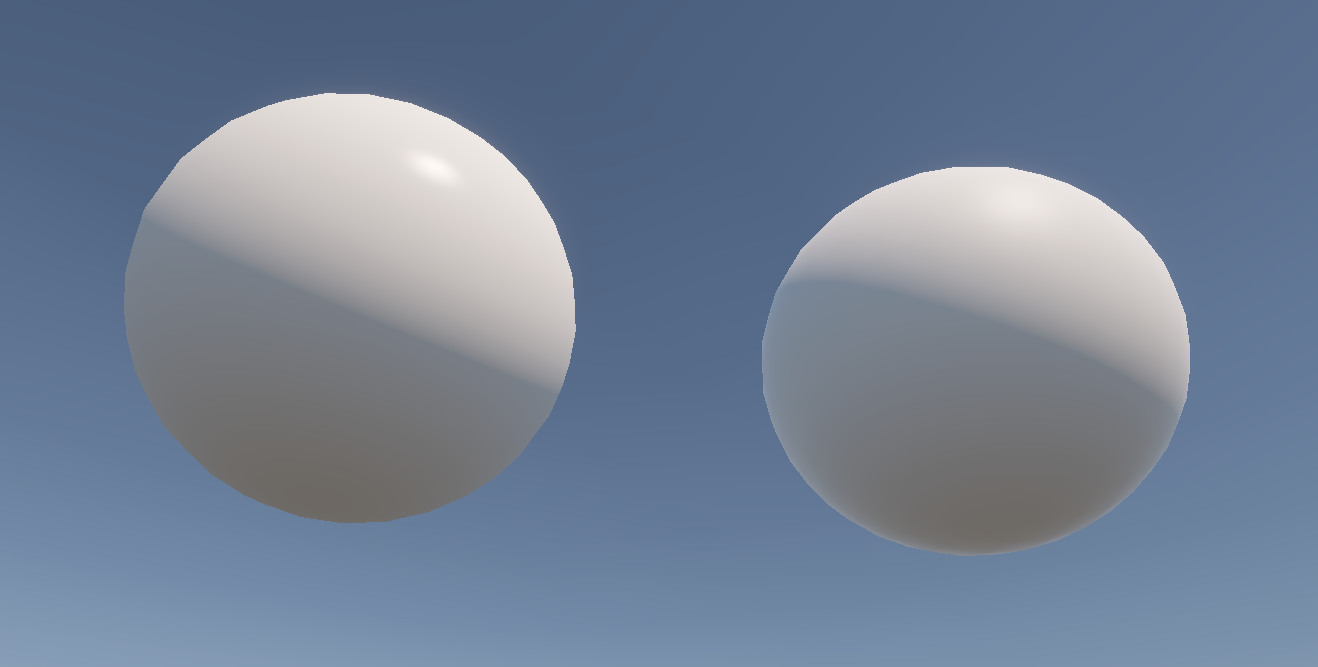
This is called Fresnel lighting, pronounced “fruh-nell” and named after a French guy, and it’s a kind of special case of specular lighting that arises when you view something at a very shallow angle. That’s why it appears on the outer edge of a sphere – at all these parts, the angle between the view direction and the normal vector is at its highest. I’d like to incorporate Fresnel lighting in our shader.
I’ll add two properties for the Fresnel lighting, one called _FresnelPower, which will be a Range between 1 and 20. We will use this value to control how far the Fresnel lighting extends across the mesh surface – the larger this value, the smaller and thinner the Fresnel highlight will be. Then, I’ll add a _FresnelStrength value between 0 and 1, which is a multiplier for the Fresnel lighting. Without this, I think it’s a bit too strong, so it’s nice to be able to turn it off.
Properties
{
    ...
    _FresnelPower("Fresnel Power", Range(1.0, 20.0)) = 4.0
    _FresnelStrength("Fresnel Strength", Range(0.0, 1.0)) = 0.15
}
Remember to add both of these properties in the CBUFFER, too.
CBUFFER_START(UnityPerMaterial)
    ...
    float _FresnelPower;
    float _FresnelStrength;
CBUFFER_END
Let’s go directly to the fragment shader and create a variable for the fresnelLighting. At its core, Fresnel lighting depends on the angle between the normal and view vectors, so we can throw both of those in a dot product and saturate its result. However, unlike the other kinds of lighting, this is meant to get stronger as the angle increases, so I will subtract this value from 1. This gives us a base Fresnel lighting amount. I will then raise this value to the _FresnelPower property we added before, which lets us control the size of the Fresnel highlight, and then I’ll multiply the result by _FresnelStrength to give us a final fresnelLighting amount.
float3 specularLighting = pow(saturate(dot(reflectedVector, viewWS)), pow(2.0f, _Glossiness)) * mainLightColor;

float3 fresnelLighting = pow(1.0f - saturate(dot(normalWS, viewWS)), _FresnelPower) * _FresnelStrength;
I can just add frenselLighting to the finalColor calculation we previously did alongside the specularLighting, and we’re done. And if you’ve been taking a shot every time you read the word “Fresnel”, I’m so sorry. It barely looks like a real word to me anymore.
float3 finalColor = (ambientLighting + diffuseLighting) * baseColor.rgb + specularLighting + fresnelLighting;
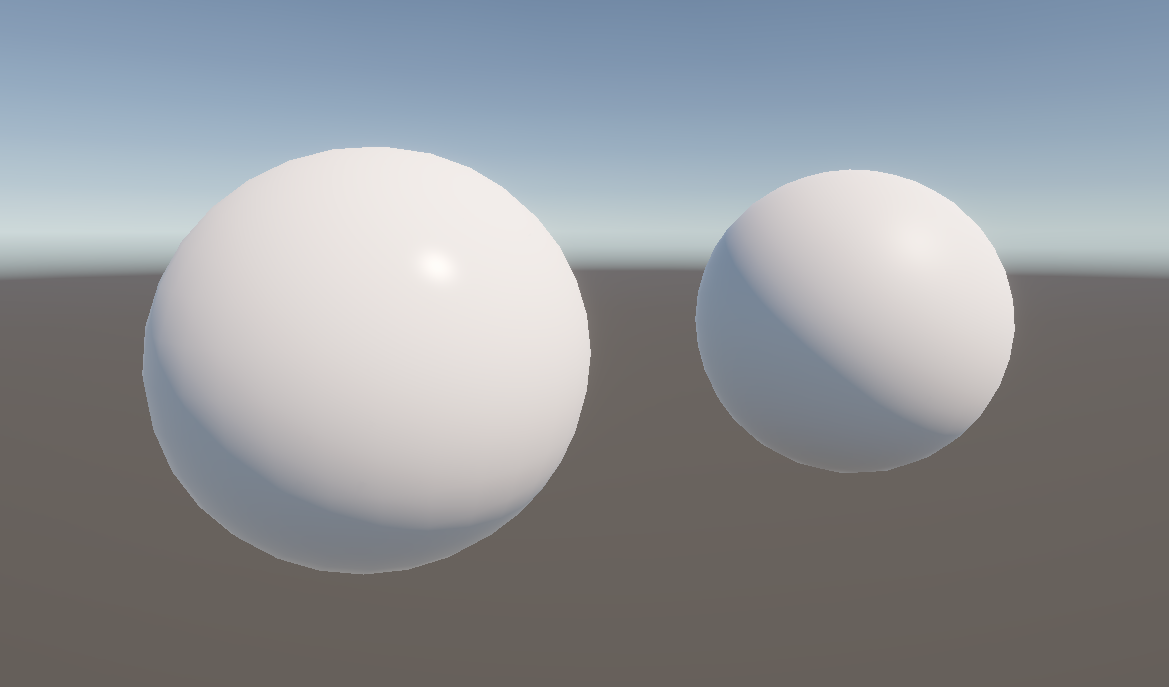
In the Scene View, we can tweak the power and strength values until we’ve got something that looks pretty similar to the URP Lit shader. I like to add Fresnel lighting to my shaders because it helps to make objects stand out a bit in front of other parts of your scene.
So far, we are relying on the mesh geometry to give us all the normal vector information. However, for very detailed objects, it’s not feasible to model all the small crevices and shapes on the surface, so it’s common to use normal maps to do that.
Subscribe to my Patreon for perks including early access, your name in the credits of my videos, and bonus access to several premium shader packs!
Normal Mapping
A normal map is a texture which encodes the normal vector at each point on the surface in a special format, so we can read such a texture using the same set of UVs we would use for a base texture and then unpack the color data into a new normal vector which we can use instead.
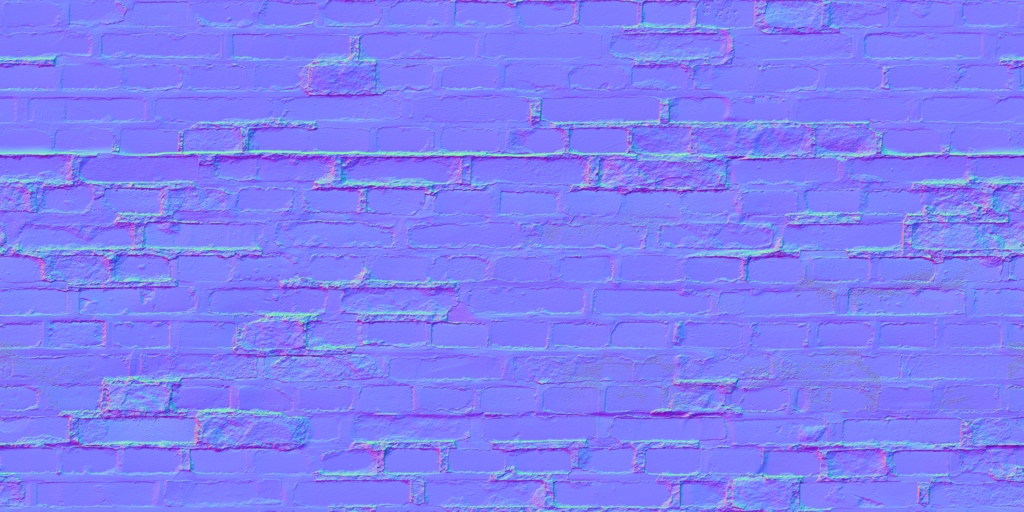
We’ll need a couple of new properties for this: first, a _NormalTexture, which will use the same 2D type as the _BaseTexture, but the default value will be "bump", which I mentioned was one of the options back in Part 2. This makes the entire texture look blueish, and it’s equivalent to a totally flat normal map. The other property will be _NormalStrength, which controls how deeply the normal map changes the surface normal directions, which I’ll make a Range from 0 to 2. The URP Lit shader doesn’t bound this value, but I just think it looks silly 🪿 when you make it very high.
Properties
{
    _BaseColor("Base Color", Color) = (1, 1, 1, 1)
    _BaseTexture("Base Texture", 2D) = "white" {}
    _NormalTexture("Normal Texture", 2D) = "bump" {}
    _NormalStrength("Normal Strength", Range(0.0, 2.0)) = 1.0
    ...
}
Remember to add the _NormalStrength to the CBUFFER, and we’ll add the _NormalTexture just below the _BaseTexture, alongside its sampler.
CBUFFER_START(UnityPerMaterial)
    float4 _BaseColor;
    float4 _BaseTexture_ST;
    float _NormalStrength;
    ...
CBUFFER_END

TEXTURE2D(_BaseTexture);
SAMPLER(sampler_BaseTexture);

TEXTURE2D(_NormalTexture);
SAMPLER(sampler_NormalTexture);
Now let’s think about what the normal texture represents. At each point on the surface, the color values in the texture encode a direction. Unity provides a function called UnpackNormal which converts those colors into a tangent space normal.
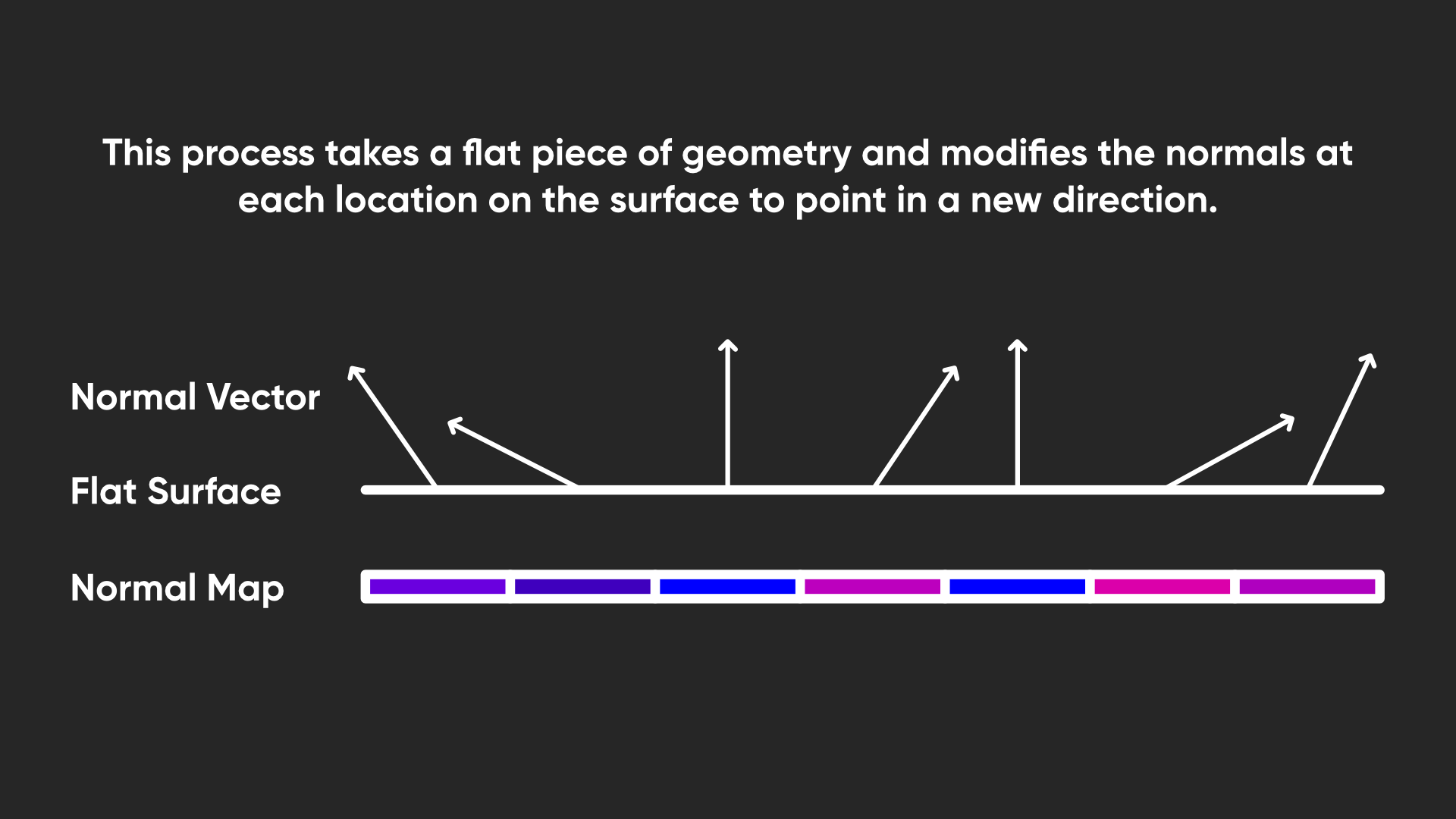
This means that the vectors are relative to the surface facing direction. Before we can use it in calculations, we need to convert it from tangent space to world space.
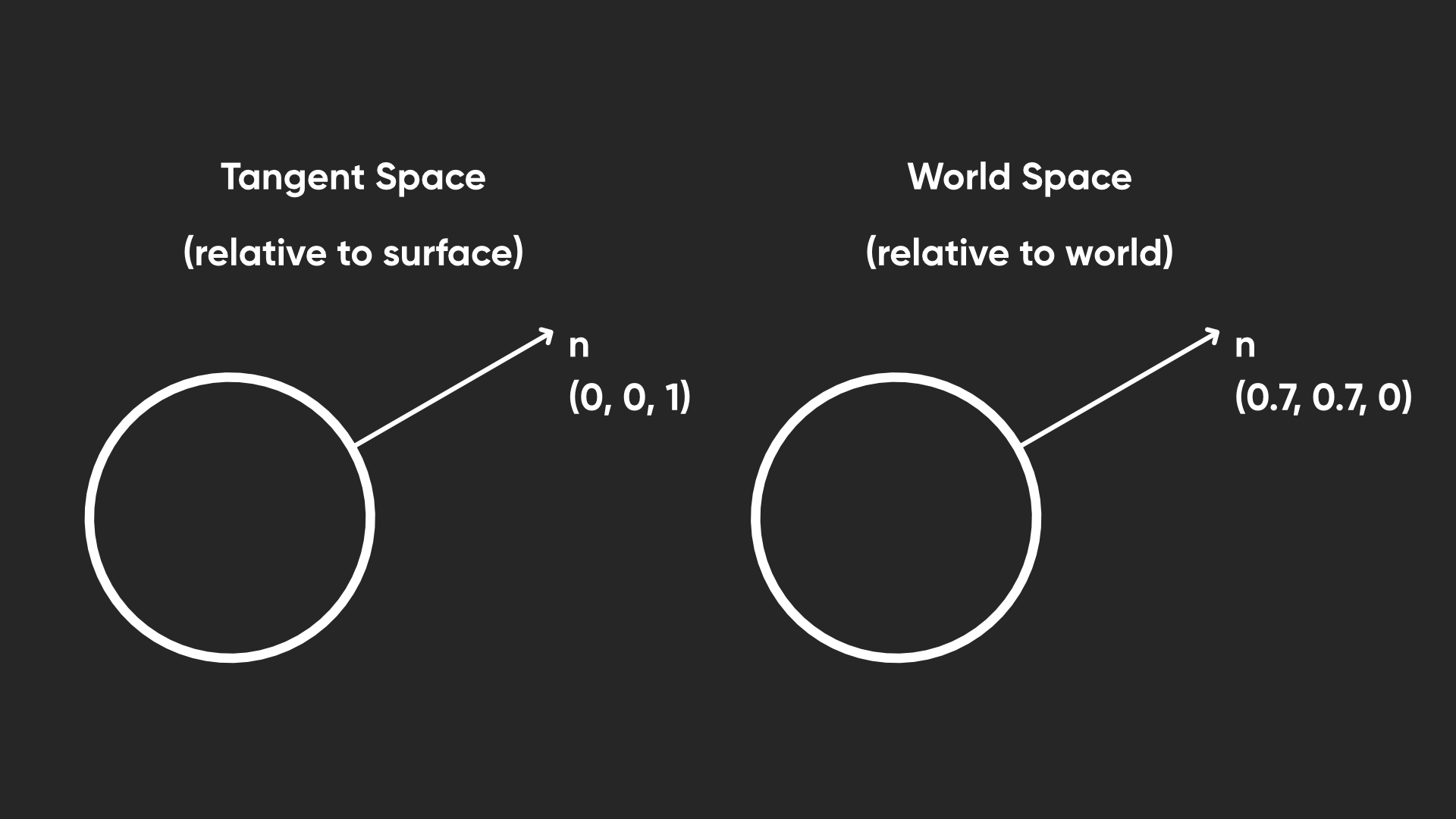
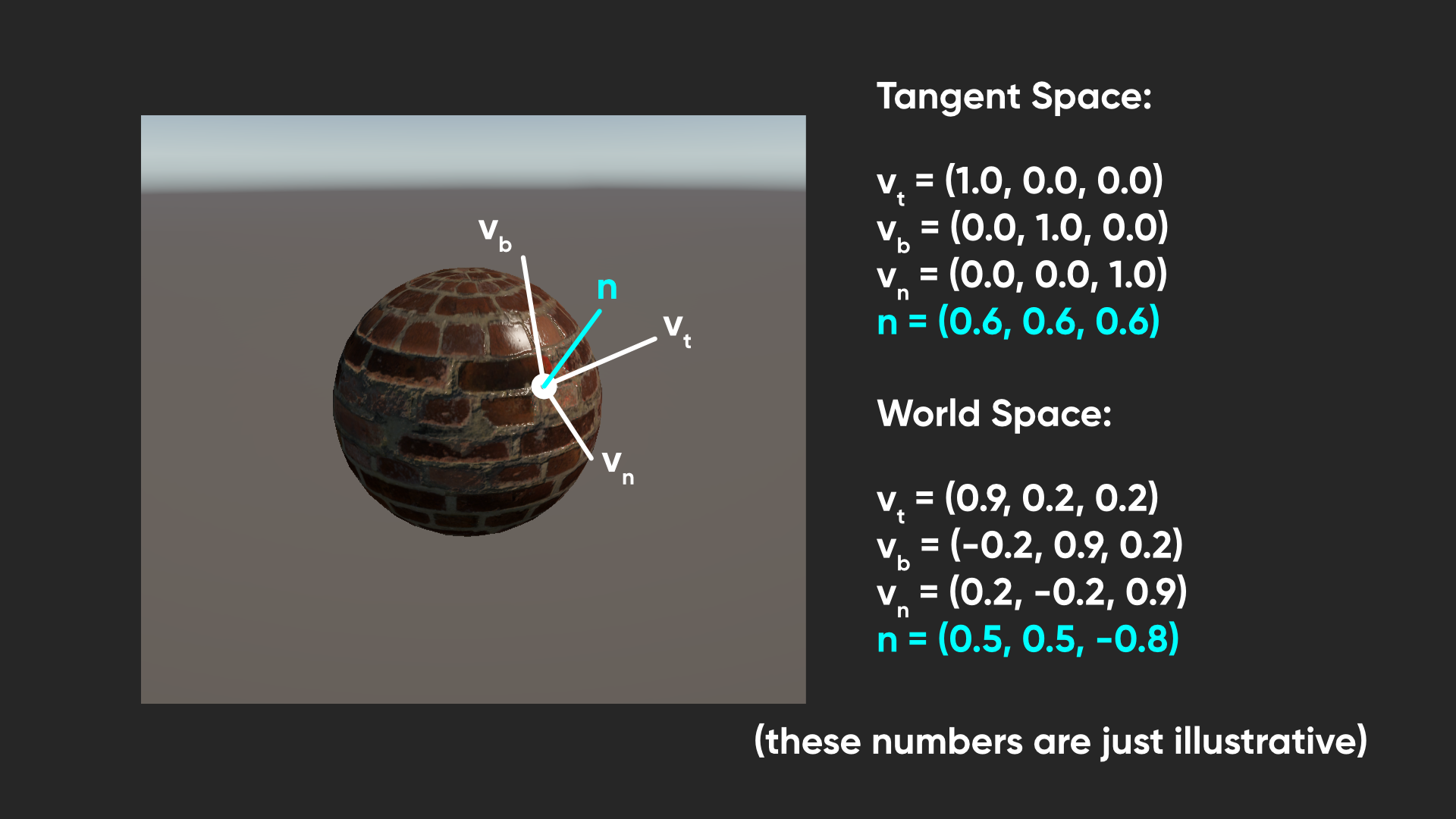
To do the conversion between spaces, we:
- take the tangent space normal and multiply its x-component by the world-space tangent vector, which points along the tangent space x-axis
- take the tangent space normal y-component and multiply it by the world-space bitangent vector, which points along the tangent space y-axis
- take the tangent space normal z-component and multiply by the world-space normal vector, which points along the tangent space z-axis
- add those three resulting vectors together and normalize to get a new world space normal vector.
Reading the tangent vector from the mesh data is easy enough – we can just include an entry for the object space tangent vector inside the appdata struct, making sure that it’s a float4, and the semantic is called TANGENT. Although the tangent vector itself is three-dimensional just like the normal vector, this fourth component will be useful later.
struct appdata
{
    float4 positionOS : POSITION;
    float2 uv : TEXCOORD0;
    float3 normalOS : NORMAL;
    float4 tangentOS : TANGENT;
};
I’ll also be passing this data to the fragment shader, so let’s also define a world space tangent vector in the v2f struct, with the next available TEXCOORD semantic, which is TEXCOORD4.
struct v2f
{
    float4 positionCS : SV_POSITION;
    float2 uv : TEXCOORD0;
    float3 normalWS : TEXCOORD1;
    float3 positionWS : TEXCOORD2;
    float3 viewWS : TEXCOORD3;
    float4 tangentWS : TEXCOORD4;
};
In the vertex shader, let’s convert our tangent vector from object to world space using the TransformObjectToWorldDir function. That only works for the first three components of the vector, but I’ll just preserve the original fourth value and pass it to the fragment shader.
v2f vert(appdata v)
{
    v2f o = (v2f)0;

    ...
    o.tangentWS = float4(TransformObjectToWorldDir(v.tangentOS.xyz), v.tangentOS.w);

    return o;
}
In the fragment shader, let’s sample the _NormalTexture using the syntax we are familiar with. This is still just color data, so to decode that data and convert it into a normal vector, we can pass it into the UnpackNormalScale function, which is like the UnpackNormal function I mentioned but it also takes _NormalStrength as an input. This gives us a tangent-space normal vector, as I just described.
float3 normalWS = NormalizeNormalPerPixel(i.normalWS);
float3 viewWS = normalize(i.viewWS);
float4 shadowCoord = TransformWorldToShadowCoord(i.positionWS);

float3 normalTS = UnpackNormalScale(SAMPLE_TEXTURE2D(_NormalTexture, sampler_NormalTexture, i.uv), _NormalStrength);
And finally, let’s do the conversion from tangent space to world space. We have the normal and tangent vectors, but we also need the bitangent vector (which can also be called the binormal vector - they mean the same thing). It’s perpendicular to the other two, so we can just use the cross product between them to obtain the bitangent.
We also need to multiply by the tangent vector w-component, which determines the direction that the bitangent should face, and also multiply by a variable called unity_WorldTransformParams.w, which helps ensure the bitangent faces the correct way when your object uses a negative scale in any of its axes. Then, now that we have the bitangent vector, we can do those multiplications I mentioned earlier, which gives us a new world-space normal vector (normalWS) we can use to override the old one.
float3 normalTS = UnpackNormalScale(SAMPLE_TEXTURE2D(_NormalTexture, sampler_NormalTexture, i.uv), _NormalStrength);

float3 binormalWS = cross(normalWS, i.tangentWS.xyz) * i.tangentWS.w * unity_WorldTransformParams.w;
normalWS = normalize(
    normalTS.x * i.tangentWS.xyz +
    normalTS.y * binormalWS +
    normalTS.z * normalWS);
Let’s head back into the Scene View and attach a normal map to our material. When we do, the lighting will change on the object as we expected. If we combine this with a corresponding base texture, then we can see how a normal map really makes the lighting feel a lot more realistic.
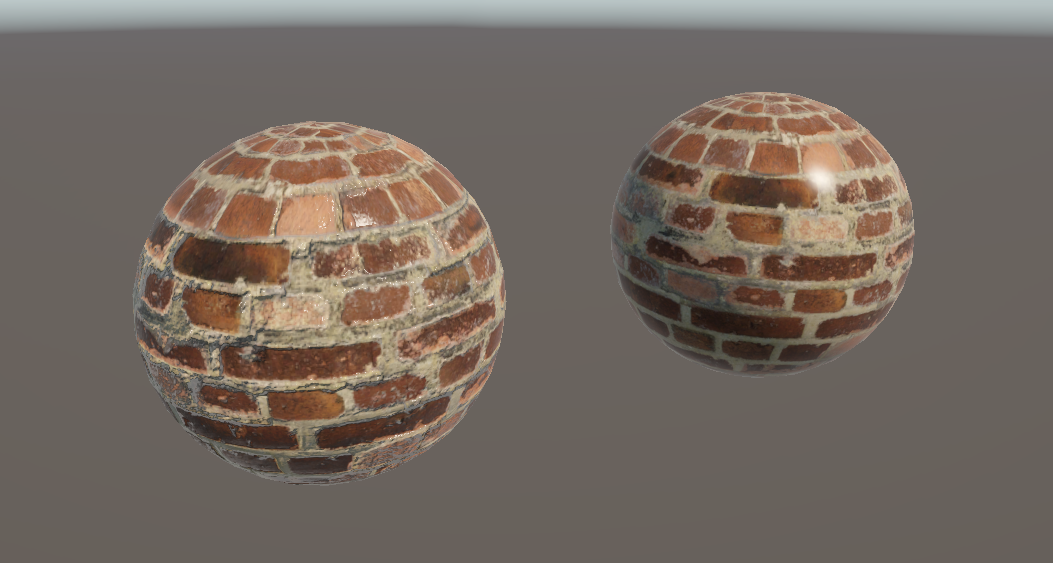
Obviously bricks aren’t that shiny in real life but I hope this image gets the point across regardless!
By the way, if you want some homework, try modifying the DepthNormals pass to use this new normal map. I’ll give you a hint: you’ll need to add a CBUFFER to that pass, but it needs to be the same as the one you use in the main pass, or Unity will complain. Check out the GitHub repository for my completed version!
We have done a lot of work so far on this shader, but we’re only considering one light: the main directional light. Our shader will be far more effective if it could react to other realtime lights in the scene, such as point and spot lights, or even extra directional lights. Let’s add them.
Subscribe to my Patreon for perks including early access, your name in the credits of my videos, and bonus access to several premium shader packs!
Additional Lights
I’m going to clone the BasicLighting shader and name the copy AdditionalLighting, renaming it at the top of the shader file.
Shader "Basics/AdditionalLighting"
In this shader, we will loop through each additional light and do the same lighting calculations we used for the main light. And that means we need to dive into more keyword soup. Mmmm. This first one here will let us use light cookies, which are mask textures we can apply to a light to block out part of it. They’re useful for giving lights a bit more texture, like if you wanted to represent a dirty light bulb.
#pragma multi_compile_fragment _ _LIGHT_COOKIES
These next two enable us to get information from any additional lights in the scene, and their shadow information.
#pragma multi_compile _ _ADDITIONAL_LIGHTS
#pragma multi_compile _ _ADDITIONAL_LIGHT_SHADOWS
And this last one enables us to use the Forward+ renderer.
#pragma multi_compile _ _FORWARD_PLUS
I haven’t really talked about the different rendering paths in URP yet, and I won’t go into tons of detail now, but the short version is that with Forward rendering, we loop over every light in the scene for all pixels so it gets expensive pretty quickly as you add more lights, so typically there’s a hard cap on the number of scene lights that are actually considered each frame (say, 8 additional lights). Forward+ rendering tries to slow down that rise by doing a sort of pre-pass so you only read from lights which are actually reaching the pixel you are drawing. That means the screen is divided into a grid, and each grid square can access e.g. 8 lights from a list of all the lights, which could total hundreds or thousands, with little slowdown. This keyword lets us take advantage of both rendering paths.
If you are using Unity 6.1 onwards, Unity renamed this keyword to _CLUSTER_LIGHT_LOOP instead. It’s kind of annoying but you should use that instead if you are on Unity 6.1 or above, and stick with _FORWARD_PLUS in Unity 6.0. That includes later on when we use a preprocessor directive to branch our code based on this keyword.
#pragma multi_compile _ _CLUSTER_LIGHT_LOOP // Instead of _FORWARD_PLUS
You can change between paths using the Universal Renderer Data asset near the top – you’ll notice there’s also the Deferred renderer option, which I will discuss in a future tutorial.
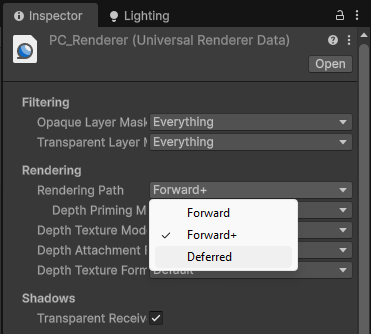
There’s a wonderful technical article that goes over the differences between these rendering paths which explains things far better than I ever could.
Now that we have prepared our keyword soup, let’s move on to the appdata and v2f structs. Later, when we access the additional lights, to get accurate shadow information, we will need to supply a shadow mask, and to do that, we need a second set of UVs. Apart from the main UVs we have already seen in the UV0 channel, Unity uses other UV channels for other purposes: UV1 is used to sample baked lightmaps, which are textures containing pre-calculated lighting values for static objects, and UV2 is used for dynamic lightmaps, where moving objects or lights can update their shadow data each frame. The shadow mask uses these dynamic lightmap UVs.
Unity automatically sets the lightmap UVs onto your meshes, so we don’t need to do anything special to set them up, but we do need to read from them, so we can define a dynamicLightmapUV in the appdata struct, and use the TEXCOORD2 semantic to get the correct channel. The number is important because when we read mesh data, we want to pull from a specific TEXCOORD channel!
struct appdata
{
    float4 positionOS : POSITION;
    float2 uv : TEXCOORD0;
    float3 normalOS : NORMAL;
    float4 tangentOS : TANGENT;
    float2 dynamicLightmapUV : TEXCOORD2;
};
We will also need to pass these UVs from the vertex shader to the fragment shader, but now, it’s just arbitrary data so we will use the next available TEXCOORD channel, which is TEXCOORD5.
struct v2f
{
    float4 positionCS : SV_POSITION;
    float2 uv : TEXCOORD0;
    float3 normalWS : TEXCOORD1;
    float3 positionWS : TEXCOORD2;
    float3 viewWS : TEXCOORD3;
    float4 tangentWS : TEXCOORD4;
    float2 dynamicLightmapUV : TEXCOORD5;
};
It’s annoying that both the appdata struct and v2f struct use the same TEXCOORD terminology, because they largely treat TEXCOORD in vastly different ways. In the appdata struct, we are pulling information from the mesh data, where it matters if we are reading the UV0 channel or UV1 channel in TEXCOORD0 and TEXCOORD1 respectively. However, in the v2f struct, it no longer matters where the data comes from, so every TEXCOORD(n) is just a channel for any arbitrary data.
In the vertex shader, we need to pass those UVs to the fragment shader, but we’ll need to apply lightmap tiling and scaling to them first. We did the same thing with our main UVs, but with those, we relied on the TRANSFORM_TEX macro which pulled the scaling and translation data from a texture. Instead, for the dynamic lightmap UVs, Unity gives us a variable with the scaling and translation information, and we need to apply it manually. That’s pretty simple to do – we can multiply by unity_DynamicLightmapST.xy, and then add the zw components. That’s what TRANSFORM_TEX does under the hood.
v2f vert(appdata v)
{
    v2f o = (v2f)0;

    ...
    o.dynamicLightmapUV = v.dynamicLightmapUV.xy * unity_DynamicLightmapST.xy + unity_DynamicLightmapST.zw;

    return o;
}
Now, in the fragment shader, we can use that lightmap UV to set up a shadowMask using the SAMPLE_SHADOWMASK function. This will allow us to get the correct shadowing data from our additional lights.
 float4 frag(v2f i) : SV_TARGET
 {
     float3 normalWS = NormalizeNormalPerPixel(i.normalWS);
     float3 viewWS = normalize(i.viewWS);
     float4 shadowCoord = TransformWorldToShadowCoord(i.positionWS);
     float4 shadowMask = SAMPLE_SHADOWMASK(i.dynamicLightmapUV);

     ...
}
Speaking of which, let’s add some code to read from those between the code for the main light and the part where we sample the _BaseTexture. Let’s wrap this section of the code in a preprocessor directive. By saying #ifdef, short for “if defined”, and then the name of one of our keywords, in this case _ADDITIONAL_LIGHTS, and then ending the block with #endif, we’re telling Unity to compile whatever is inside this bit of the code only if there are additional lights in the scene.
    float3 fresnelLighting = pow(1.0f - saturate(dot(normalWS, viewWS)), _FresnelPower) * _FresnelStrength;

#ifdef _ADDITIONAL_LIGHTS

    ...

#endif

    float4 baseColor = SAMPLE_TEXTURE2D(_BaseTexture, sampler_BaseTexture, i.uv) * _BaseColor;
In here, we will use a couple of macros to set up a loop for the additional lights, but we need to set up some data which that macro will use first. Let’s initialize an instance of a struct called InputData, which is defined somewhere in the URP shader library. This struct has many fields which I’ll explore in the next Part, but for now, we only need to set the world space position, which we have access to already, and a normalized screen space UV. There’s a handy GetNormalizedScreenSpaceUV function for this, which accepts the clip space position as input. Unity uses these values to find the lights from the Forward+ pre-pass if you’re using it.
#ifdef _ADDITIONAL_LIGHTS

    InputData inputData = (InputData)0;
    inputData.positionWS = i.positionWS;
    inputData.normalizedScreenSpaceUV = GetNormalizedScreenSpaceUV(i.positionCS);

    ...
#endif
Next, let’s set up that loop. Unity gives us a function to get the number of lights, called GetAdditionalLightsCount, and then we can set up the loop using the LIGHT_LOOP_BEGIN macro, which accepts the light count as a parameter. Under the hood, this is using the InputData to set up a for loop which iterates through each light, giving us a lightIndex value for each iteration. When this shader is compiled, the macro is replaced with real shader code with a real for-loop in it. We close the loop with the corresponding LIGHT_LOOP_END macro.
uint lightCount = GetAdditionalLightsCount();

LIGHT_LOOP_BEGIN(lightCount)

   ...

LIGHT_LOOP_END
We can use the GetAdditionalLight function and pass in that lightIndex, plus positionWS and the shadowMask, to finally get data about each additional light. Using the light, we can do diffuse and specular lighting calculations just like those we did for the main light, but this time, we will use the += operator to add both kinds of lighting to the main light’s values. We do this because lighting is additive – the total diffuse lighting on a surface being affected by two lights is equal to the diffuse lighting from one light plus the diffuse lighting from the other light. Crucially, we don’t need to add the ambient or Fresnel lighting a second time, as they both act as forms of indirect lighting.
LIGHT_LOOP_BEGIN(lightCount)

    Light light = GetAdditionalLight(lightIndex, i.positionWS, shadowMask);
    lightColor = light.distanceAttenuation * light.shadowAttenuation * light.color;

    diffuseLighting += saturate(dot(normalWS, light.direction)) * lightColor;

    reflectedVector = reflect(-light.direction, normalWS);
    specularLighting += pow(saturate(dot(reflectedVector, viewWS)), pow(2.0f, _Glossiness)) * lightColor;

LIGHT_LOOP_END
That’s all we need to do in the shader to add additional lighting, so let’s go back to the Scene View and add a couple of point lights. If we move them around our mesh, then we’ll see the lighting update in realtime and react nicely to any normal map we have on the object, including an additional specular highlight for each light acting on the object. Shadows also work nicely as long as you have them enabled on the light itself.
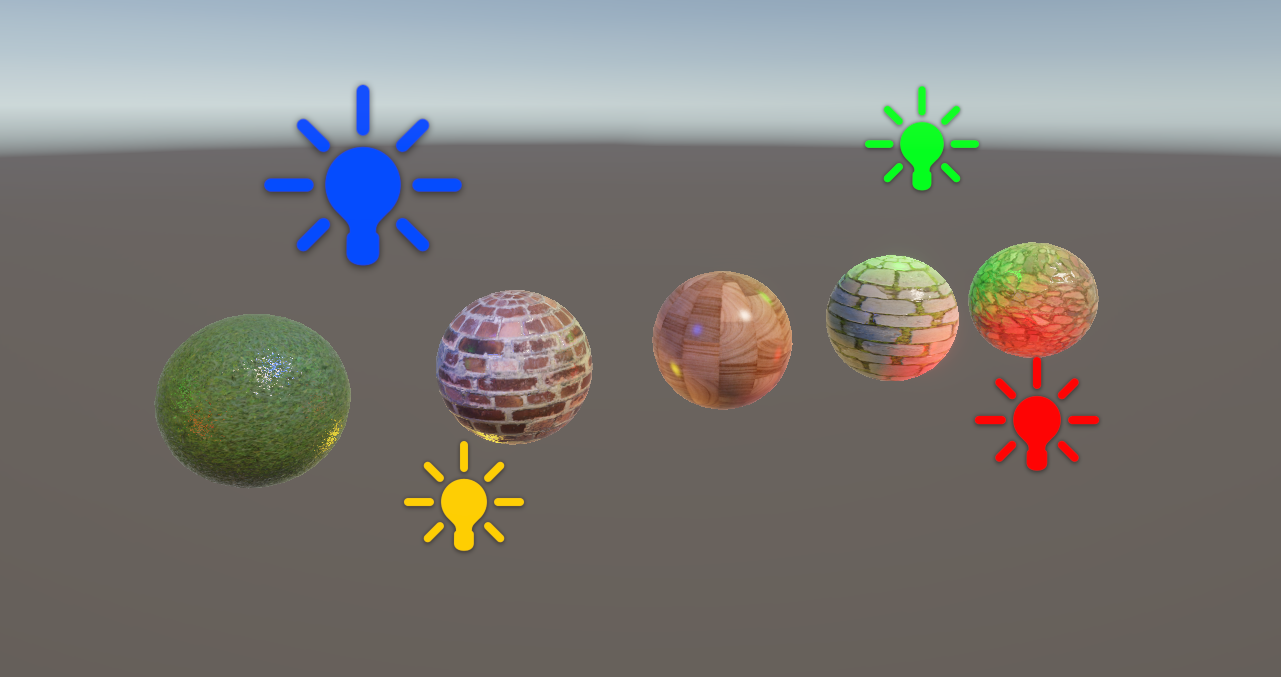
If you move a mesh using our BasicLighting or AdditionalLighting shaders between the light and another object, though, you’ll notice that neither of them cast shadows right now. There’s one last thing I want to add to the AdditionalLighting shader – and you can add it to any other shader too, if you want.
Subscribe to my Patreon for perks including early access, your name in the credits of my videos, and bonus access to several premium shader packs!
Shadow Mapping
Shadow casting is handled by an additional pass, just like the DepthOnly and DepthNormals passes. Essentially, the scene is rendered from the perspective of each light a few times, drawing the depth of each object into the shadowmap texture. We don’t need to worry about setting each render or anything – we just need to write the correct information in our shader. This happens before the main shader pass, so when it needs shadow information, we’ll know if the thing being in drawn is in shadow if it’s further from the light than the depth value drawn in the shadow map.
Let’s add a new Pass. I’ll slot it between our main pass and the depth passes, and I’ll set its LightMode tag to ShadowCaster, which is the designated name for this type of pass in URP.
Pass
{
    Tags
    {
        "LightMode" = "ShadowCaster"
    }

    ...
}
I’ll ensure that ZWrite is On, and since only the depth is relevant for this pass, I can also say ColorMask 0 to bypass writing color entirely.
Tags
{
    "LightMode" = "ShadowCaster"
}

ZWrite On
ColorMask 0
Next, we have the HLSLPROGRAM block. My vertex and fragment functions will be named shadowPassVert and shadowPassFrag respectively, and I’ll import three files from the URP shader library: Core.hlsl, Lighting.hlsl, and Shadows.hlsl. We need a single keyword in this pass called _CASTING_PUNCTUAL_LIGHT_SHADOW, which is used by Unity to use different functions later in the shader depending on whether we are drawing shadows for a directional light or other kinds of light.
ZWrite On
ColorMask 0

HLSLPROGRAM
#pragma vertex shadowPassVert
#pragma fragment shadowPassFrag

#include "Packages/com.unity.render-pipelines.universal/ShaderLibrary/Core.hlsl"
#include "Packages/com.unity.render-pipelines.universal/ShaderLibrary/Lighting.hlsl"
#include "Packages/com.unity.render-pipelines.universal/ShaderLibrary/Shadows.hlsl"

#pragma multi_compile_vertex _ _CASTING_PUNCTUAL_LIGHT_SHADOW

...
Then, we need two HLSL variables: _LightDirection and _LightPosition, both of which are float3 types. We don’t need to include these inside a CBUFFER because they are not shader properties that we added – instead, they are passed directly to the shader via URP’s internal code.
float3 _LightDirection;
float3 _LightPosition;
Next, we have the appdata and v2f structs. These are fairly simple: the appdata struct just needs the object space position and normal vectors, and the v2f struct only needs the clip space position.
struct appdata
{
    float4 positionOS : POSITION;
    float3 normalOS : NORMAL;
};

struct v2f
{
    float4 positionCS : SV_POSITION;
};
Now I’ll move on to the vertex shader function. This just needs to output the clip space position, which we’ll handle using a function called GetShadowPositionHClip, which will accept the object space position and normal as inputs. Now, this function isn’t included in the URP shader library – I’m stealing it directly from the URP Lit shader, with a couple of minor modifications. I’ll define it just above the vertex shader.
float4 GetShadowPositionHClip(float3 positionOS, float3 normalOS)
{
    ...
}

v2f shadowPassVert(appdata v)
{
    v2f o = (v2f)0;

    o.positionCS = GetShadowPositionHClip(v.positionOS, v.normalOS);

    return o;
}
When writing shadow information in the vertex shader, we can’t just do TransformObjectToHClip to the position, since this can cause a shadowing artefact called shadow acne where a surface shadows itself. Instead, the surface is moved very slightly inwards along its own surface normal to avoid the problem. We’ll do this in the GetShadowPositionHClip function.
First, we can get the world space position and normal vectors using two familiar functions: TransformObjectToWorld for the position, and TransformObjectToWorldNormal for the normal vector. We need these because the _LightPosition and _LightDirection vectors are defined in world space. Next, we can use that _CASTING_PUNCTUAL_LIGHT_SHADOW keyword to choose how we get the light direction vector. For non-directional lights, we subtract the vertex position from the _LightPosition and normalize the result. For directional lights, we just grab the _LightDirection variable directly. Finally, we can set up the clip-space position output using the TransformWorldToHClip function. We are going to pass in another function called ApplyShadowBias, which takes in the world space position, normal, and light direction, and it’s going to return a new position which has been moved slightly along the normal, as I described. Finally, let’s make sure the shadows are clamped to a reasonable range using a helper function called ApplyShadowClamping, and then we can return the clip space position.
float4 GetShadowPositionHClip(float3 positionOS, float3 normalOS)
{
    float3 positionWS = TransformObjectToWorld(positionOS);
    float3 normalWS = TransformObjectToWorldNormal(normalOS);

#if _CASTING_PUNCTUAL_LIGHT_SHADOW
    float3 lightDirectionWS = normalize(_LightPosition - positionWS);
#else
    float3 lightDirectionWS = _LightDirection;
#endif

    float4 positionCS = TransformWorldToHClip(ApplyShadowBias(positionWS, normalWS, lightDirectionWS));
    positionCS = ApplyShadowClamping(positionCS);

    return positionCS;
}
The only thing left to do inside this pass is to add the fragment shader function. It has the same structure as most of our fragment shaders, but inside it, we don’t really care what it returns since only the depth values are important and those are handled automatically by Unity outside of the fragment shader, so let’s just return 0 and be done with it.
float4 shadowPassFrag(v2f i) : SV_TARGET
{
    return 0;
}
In the Scene View, if we cover a light with an object which uses our custom AdditionalLighting shader, then we’ll see that it now produces shadows perfectly. The nice thing is that this pass can be copied into our existing shaders and it will do what we want.
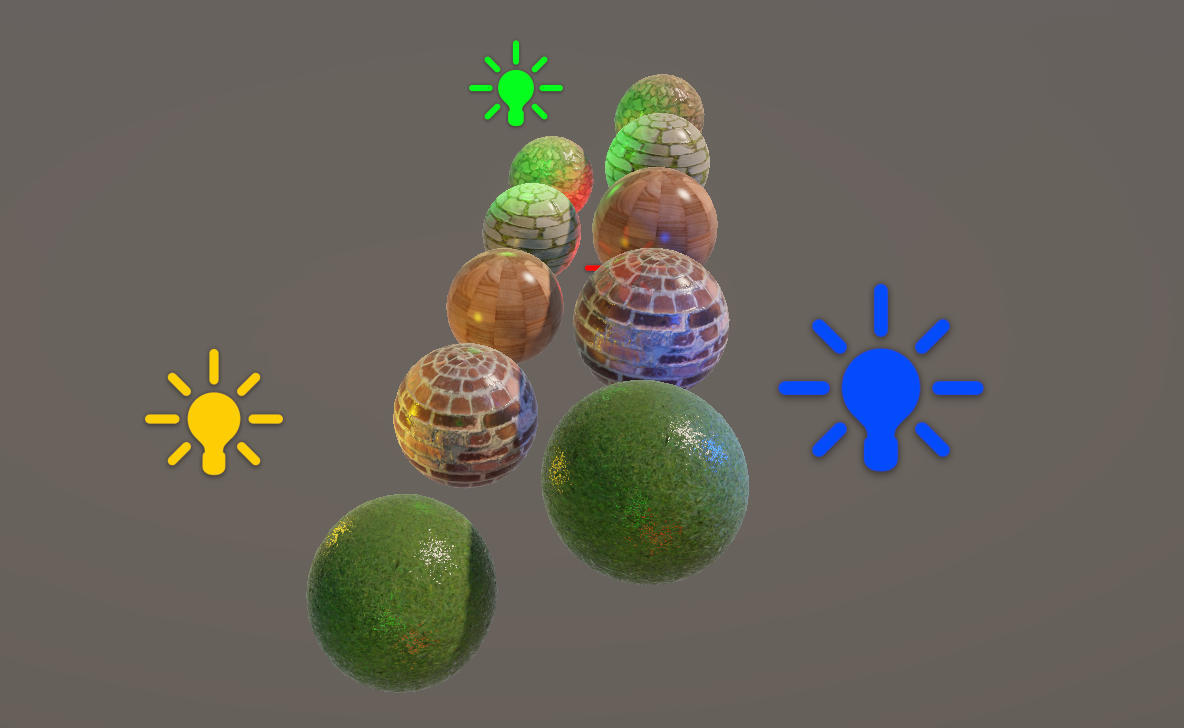
The only thing to remember, and this applies to the DepthOnly and DepthNormals passes too, is that if you want to physically move any vertices (such as with the wave shader we created in Part 5) or discard any fragments (which happens in an alpha cutout shader like the one from Part 3), you ought to also modify these passes to do the same vertex movements or fragment clipping. That’s one advantage of Shader Graph, I think – it handles generating all these kinds of passes for you, which is really nice.
I think we did a lot in this tutorial, but lighting is a huge topic and there’s always more to learn! With that in mind, in Part 7, we will learn about Physically Based Rendering, a way of shading objects based on the way light operates in the real world which also uses parameters which describe the physical properties of the surface.
Until next time, have fun making shaders!
Subscribe to my Patreon for perks including early access, your name in the credits of my videos, and bonus access to several premium shader packs!